
Introduction
If you have door access via one of the following systems: Worb, Tidomat, Zesec, Tickoff or Gantner, you can create a separate door opening/check in button on Dashboard. Door opening will then look like the images below. Facility access is available as a separate button in Wondr's menu and when clicked, available options will appear in a separate menu.
-
The function is GPS-controlled so you can see how far away you are from your available options and of course only open doors and check in if you are close enough.
-
If you are curious about using this feature on your facility, contact us at Wondr and we can help you with the option that best suits your facility.
-
If you are already using one of these systems and have the old layout where all buttons are visible on
Dashboardand want to use this instead, read on to see how to change it.
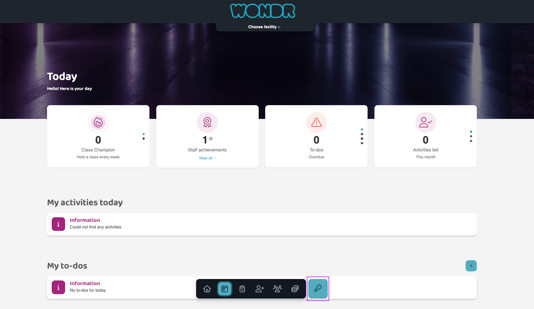
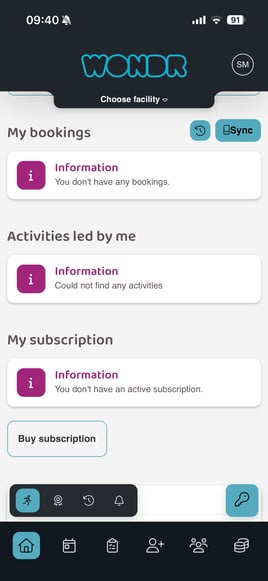
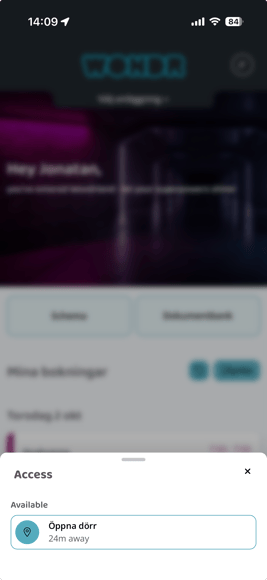
Settings
Smart rule
The feature is controlled via smart rules where the buttons for entry/check in are created and controlled. You don't need to do anything if you have just acquired this, then our support team will make sure everything is set up correctly and that you get this functionality.
But if you have had entry/check-in before and don't have this appearance but the old one, you can easily go in and change it.
Do this:
-
Go to
Settings > Smart Rules -
Edit the rule(s) that create the buttons on WondrWall
-
Under triggers, uncheck the boxes
Show on web wondr-wallandShow on app wondr-wall -
Instead, check the
Show key in draweroption. -
Under the heading
Show key onyou choose where the button should appear: In the app, in the browser or both. We recommend both -
If this rule controls your main key or something that is extra important that you want to always appear at the top when you open the key menu, you can also check
Pin to top in drawer -
Then update the rule and repeat this process if you have multiple buttons on WondrWall
Button icon
Do you want to change the button icon?
Do this:
-
Go to
Settings > Wondr-wall -
Under
Key Button, clickSelect -
Search for the desired icon
-
After you have chosen a new icon, click
Save
Last edited: 23/1-2026