
📦 Features
The Wondr PowerOffice integration works with Invoice handling, and enables automatically updating the payment status of Invoices from Wondr when your customers pay them.
The integration will:
-
Automatically synchronize invoices generated from Wondr into your PowerOffice account.
-
Automatically update the payment status of the Invoice into Wondr.
-
Gives access to using PowerOffice’s debt collection features.
📋Prerequisites
It is EXTREMELY important that all invoices handled by the “Wondr”-invoice module are all resolved/handled before switching invoice handler to PowerOffice.
It is very important that the bookkeeping accounts between Wondr and PowerOffice matches.
-
An active PowerOffice account (requires a paid subscription).
-
A bookkeeping account set up in Wondr which matches the bookkeeping account in your PowerOffice.
-
A Wondr account.
-
PowerOffice module enabled on your account.
The PowerOffice integration must be enabled by Wondr Support. Send our support an e-mail to no@wondr.cc.
⚙️Setup
This section covers the required steps to get started with the PowerOffice integration for Wondr.
Step #1 - Enable the Wondr Integration in PowerOffice
-
Go to
Settings > Extensionsin your PowerOffice account. -
Search for the extension Wondr and add it.
-
After adding the extension, PowerOffice will generate a Client Key.
-
Copy the Client Key and email it to support@wondr.cc requesting activation of the PowerOffice integration.
🔗 PowerOffice Wondr Extension: Wondr integrasjon med PowerOffice
Step #2 - Wait for Activation from Wondr
Wondr Support will activate the integration on your account and insert your Client Key.
Once you’ve received confirmation:
-
Log in to Wondr.
-
Go to
Settings > Payments & Cart > PowerOffice. -
Confirm that your Client Key is visible and correctly entered.
Invoices generated from Wondr will now automatically appear in your PowerOffice account.
🔧Usage Instructions
This section covers how to work with invoices generated from Wondr, with the PowerOffice integration enabled.
To send invoices to a customer, the customer needs to have “Invoice receiver” added as a payment method.
Go to: User > [User] > Payment Methods.
-
Click
+under Payment Methods -
Select Invoice receiver
-
Click Create.
Subscriptions in Wondr will automatically generate invoices for the amount owed, with due dates specified either in the customers subscription, and/or your general setting.
Invoices from Wondr will appear in the “Drafts”-folder in PowerOffice, and you will need to log into PowerOffice and press “Send” when you want to send the Invoice to your Customer.
Tip: Make sure to regularly check your Drafts tab in PowerOffice to ensure nothing is left unsent.
Sending an Invoice
In PowerOffice, go to your “Drafts”-folder.
-
Click to mark the Invoice(s) you want to send
-
Press “Send invoice”
-
Your invoice will now be sent to the Customers, and the invoice status will be synchronized back into Wondr.
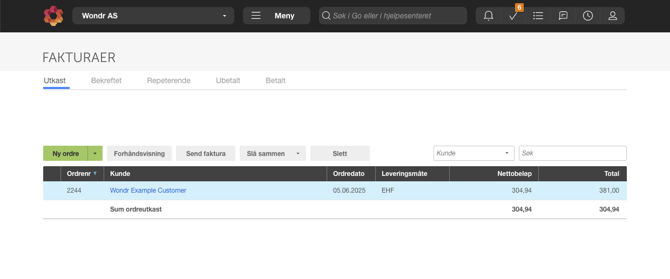
Your Drafts-folder in PowerOffice is where the new Invoices from Wondr will appear
View All Invoices
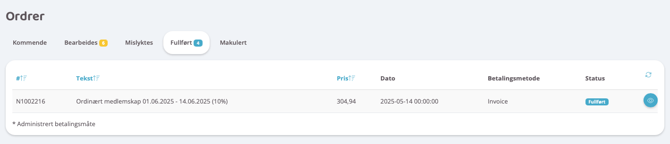
Once you have enabled the PowerOffice / Wondr-integration for invoices, they will no longer appear under “Invoices” in your main menu.
In Wondr
You can find the invoices by going to:
-
The Invoice order rows report
Reports > Economy > Invoice order rows -
The Orders-panel on the Customer profile
Users > [User] > Orders
In PowerOffice
You can find the invoices generated by Wondr by going to:
-
Drafts - Invoices generated from Wondr, which are not sent yet.
-
Confirmed - Invoices that have been sent
-
Unpaid - Invoices that have not yet been paid
-
Paid - Invoices that have been paid.
How can I handle Invoices that are connected to PowerOffice?
-
Set the customer as invoice recipient in Wondr and make invoice the default payment method
-
Wondr will automatically create payments for the membership on the specified payment date. When this happens, all payment information is sent to Power Office where the invoice is generated
-
You send out the invoice yourself from Power Office
-
When the customer pays the invoice, it will automatically be registered as paid in Wondr - you don't need to do anything manually in this step.
When an order from Wondr arrives in Power Office, it's IMPORTANT to never use the "Merge" function under Drafts!
Invoice credits should always be processed in Wondr!
If an invoice needs to be credited on the same day it was originally created, you need to:
-
Go to the order that needs to be credited
-
Click "Update status"
-
Verify that an invoice number has been created
-
Ensure it's been recorded in PowerOffice

Cancel Invoice
Important! If an invoice needs to be canceled, it must first be canceled in Power Office. After cancellation, it will appear under Failed Payments in Wondr where you can:
-
Process it with an alternative payment method, or
-
Issue a credit (note: this will not create a credit invoice in Power Office
Things to remember
Do not use the “Combine”-button to combine multiple invoices into one in PowerOffice. Doing so will:
-
Break the connection between the invoice and its original record in Wondr.
-
Prevent payment status updates from syncing back correctly.
-
Cause confusion in your accounting and reporting.
💬 Troubleshooting / Help
Invoice not appearing in PowerOffice?
-
Make sure the correct Client Key from PowerOffice is entered in Wondr.
-
Ensure the user has an Invoice which is “Processing”. If the invoice is in “Upcoming”, open it and press the “activate”-button.
-
Contact support if problems persist.
Combined / Merged invoices from Wondr in PowerOffice?
-
Press the “Eye”-icon to edit the invoice in Wondr which no longer receives
-
Press edit on the PowerOffice line under Transactions. This page allows you to change the status of the Invoice manually. Once the invoice you combined multiple invoices into has been paid, mark the invoices in Wondr as paid as well.
Still need assistance? Reach out to us at no@wondr.cc and we’ll be happy to help.