Intro
It is possible to create promotional codes in Wondr that can be applied to a form, products, subscriptrions, bookings or an entire form grouping.
In this example, we will create a promotional code for a form that gives users a 20% discount.
Do this:
1. Go to Settings > Payments & Cart > Promotion Codes to create a promo code.
2. Add a promotion code by tapping the green plus icon in the right corner.
3. Fill in the fields:
-
Name
Name of the code for you on staff -
Code
Code that customers should enter at checkout to receive a discount -
Use limitHow many times can the code be used in total? -
Start/stop timeIf the code is only supposed to work for a limited amount of time choose start and stop dates and time here -
Can not be combined with other codes.Activate this function if this code should not be combinable with other codes in the system.
Show in admin checkout.
Activate this function for the promotion code to be visibel in the drop down of available codes in the admin checkout. So if admin/staff should be able to easily activate this code in the checkout use this function to make it available.
Locked to subscriptions
By enabling this feature, you can restrict a promotion code so it only applies to specific subscriptions. This ensures the discount is only valid for members who hold the required active subscription.
Example Use Case:
If you offer a Premium Membership that includes a 20% discount in your webshop, you can link the promotion code specifically to that plan. If a member with a different subscription type attempts to use the code, the system will reject it, ensuring the benefit remains exclusive to the correct membership tier.
Discount rules/Promotion code applications
You can add several applications to the same code. So for example this code can be usable on bookings and forms depending on how many applications you add.
Everything
Choose this applications for the code to include all choices in the list.
Booking
This means that the code is usable on activities with a cost, in the next step you can specify which activities if it shouldn't apply to all of them
Products
This means that the code is usable on products, in the next step you can specify which products if it shouldn't apply to all of them
Subscription
This means that the code is usable on subscriptions, in the next step you can specify which subscriptions if it shouldn't apply to all of them
Applicant form grouping
This means that the code is usable on applicant form groupings, in the next step you can specify which applicant form groupings if it shouldn't apply to all of them
Applicant form
This means that the code is usable on applicant forms, in the next step you can specify which applicant forms if it shouldn't apply to all of them
After choosing a application there are some additional settings:
Depending on which application you might also get choices for which applications the code should apply to. For example if you choose booking you get to decide which activities the code applies to. If it should apply to all don't do anything in those fields. The same applies for subscriptions and application forms/groupings.
Type
Choose a percentage or a fixed sum.
Value
Enter percentage for example 20 for 20% discount or sum for example 500 depending on what you choose in Type.
Maximum usage per purchase (quantity)
Enter how many people the code should be used for in the same registration. That is, when a person registers themselves and several other people in the same registration, how many of these people should the code be applied to? If it is only the payer, enter one. If you do not enter anything in this box, all registered people will be discounted.
When you are satisfied with all the settings, press Create.
*TIP
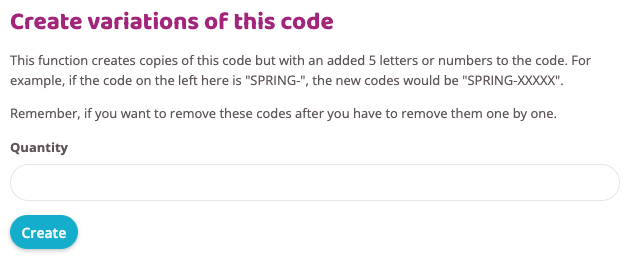
It is possible to create variations on the promotional code to send out individual promo codes that are only valid once (to prevent people from sharing the promo code with others). Then go in and edit the promo code after you have created it. There will now be a box on the right called Create variations on this code.
Enter how many variations you want to create. The code variations will be created as a note document and in the list of promo codes, now with a 5-character variation after the original code. Copy the variations and distribute one to each person who will have access to the discount.