
Table of contents
- Key regulatory requirements met by Wondr
- Managing withdrawal requests
- Adjusting your settings
- Managing item-specific withdrawal exemptions
- The member withdrawal journey
Key regulatory requirements met by Wondr
- Continuous accessibility: The withdrawal function is visible and accessible to consumers throughout their 14-day withdrawal window.
- No mandatory login: Customers can exercise their right to withdraw directly via a secure link sent to their email, completely bypassing the need to log into a portal account.
- Two-step verification: A structured flow that lets consumers input or confirm identity/contract details, followed by an explicit declaration to Confirm withdrawal.
- Automated durable acknowledgment: The system automatically generates and emails a timestamped receipt of the withdrawal notice to the consumer immediately upon submission.
Managing withdrawal requests
Administrators can track, review, and manage all incoming consumer cancellation requests directly inside the Wondr platform.
Navigating to withdrawal requests
To find incoming cancellation forms, navigate through your main administrator menu sidebar:
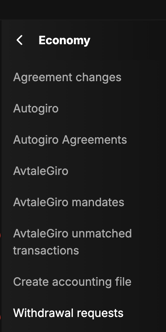
- Click on Economy.
- Select Withdrawal requests.
Please note: If there are active, pending withdrawal requests that require manual review by your staff, a red notification number will dynamically display next to Withdrawal requests in the sidebar menu to alert you.
Understanding the review states
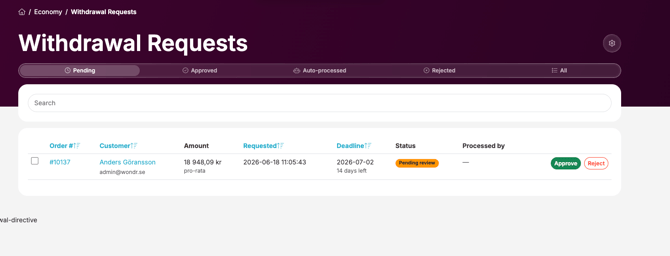
By default, all incoming requests are logged into a manual review queue. The main dashboard is broken down into structured tabs to help you organize requests:
- Pending: Requests currently waiting for an administrator's choice.
- Approved: Cancelled contracts that were manually verified and resolved.
- Auto-processed: Requests completed instantly by the system without manual interaction.
- Rejected: Cancelled forms that were reviewed and denied by staff.
- All: A master archive log containing every request history file.
Processing a pending request
When a member submits a withdrawal request, it appears under the Pending tab. For any entry inline, you can choose two immediate actions:
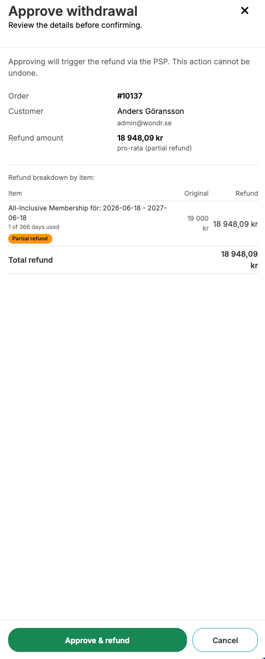
- Approving a request: Clicking the green Approve button opens a verification window summary. This breaks down the original payment sum, item terms, and the exact prorated total. Clicking Approve & refund permanently triggers a payment reversal through your integrated payment service provider. This action cannot be undone.
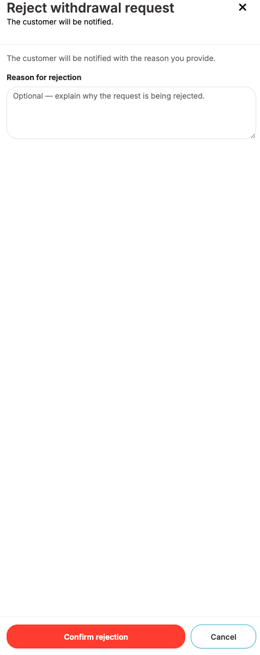
- Rejecting a request: Clicking the red Reject button opens a secondary text window. Here, you can type an optional explanation detailing exactly why the request is being turned down. Clicking Confirm rejection updates the status and alerts the customer.
Adjusting your settings
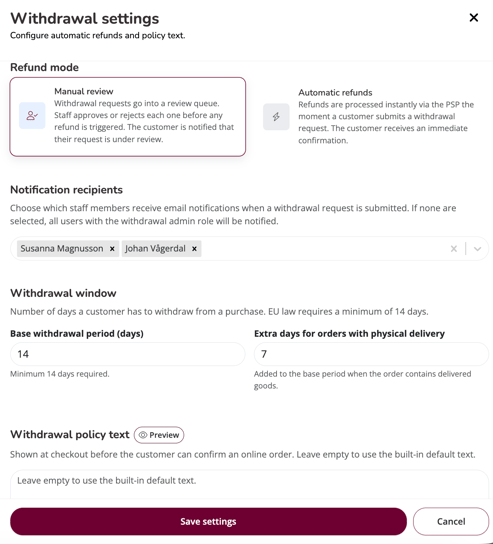
If you want the system to handle these requests on its own, you can easily change how it works. Click the Coggwheel icon in the top right corner of the screen to view your options:
- Refund mode: You can choose between Manual review or Automatic refunds. If you pick automatic, the system will instantly approve the request and return the money to the customer through your payment provider without any daily admin work.
- Notification recipients: This new option lets you choose exactly which staff members receive email alerts whenever a new withdrawal request is sent in. You can select specific people from the dropdown list. If you leave this blank, the system will automatically notify everyone on your team who has an admin role for withdrawals.
- Withdrawal window: This lets you change how long a customer has to cancel their purchase. The system is set to 14 days from the start, which is the minimum requirement in the EU, but you can change this to a higher number if your business offers a longer withdrawal period.
- Extra days for orders with physical delivery: There is a separate tracking field specifically for physical products. This allows you to add extra days to the base period to account for shipping and delivery times before the withdrawal window ends.
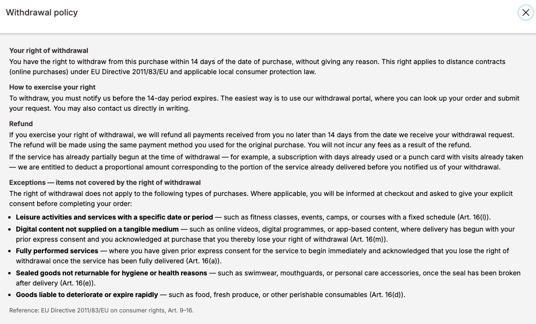
- Withdrawal policy text: Wondr includes a standard built-in legal policy text from the very beginning. If you leave this box empty, the system will use our default text. If you want to use your own customized business terms instead, you can type them directly into this box for customers to see at checkout.
Managing item-specific withdrawal exemptions
When selling items such as physical products, digital content, bootcamps or specialized memberships, you can apply distinct rules to stay compliant with your business policies. This allows you to protect items that legally qualify for an exemption, for example, a membership that grants immediate access to digital home workout videos. By making an exemption this means that the option to withdraw from the purchase will not be possible for the customer at all.
Important note on physical products: Even if your settings are set to Automatic refunds, the system will never automatically send money back for physical goods. An administrator must always manually check and verify that the physical item has been returned safely to your inventory first before approving the request.
Configuring exemptions for memberships and products
You can change the rules for individual items by going to your specific product or membership settings panel. Under the Right of withdrawal section, you will find a dropdown menu titled Withdrawal exemption.
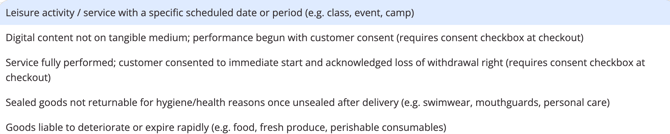
By default, this is set to None - standard withdrawal applies, which means the standard 14-day withdrawal window is active. Depending on what you are offering, you can change this setting to match one of the built-in EU exemption categories:
- Leisure activity / service with a specific scheduled date or period: Use this for items like fitness classes, events, camps, or courses running on fixed dates.
- Digital content not on tangible medium: Use this for online videos, digital training programs, or app-based content (such as on-demand workout video libraries). If selected, the system automatically adds a mandatory consent checkbox at checkout so the customer acknowledges they waive their right to cancel once delivery begins.
- Service fully performed: Use this when a service starts immediately with the customer's consent. This also forces a mandatory consent checkbox at checkout.
- Sealed goods not returnable for hygiene/health reasons: Use this for items like swimwear, mouthguards, or personal care accessories. The right to cancel ends the moment the customer breaks the protective seal after delivery.
- Goods liable to deteriorate or expire rapidly: Use this for perishable items such as food, fresh produce, or supplements.
If one of the options above are chosen instead of the standard "None - standard withdrawal applies" there will be no way for the customer to request a withdrawal from the purchase.

⚠️ Important legal notice on exemptions Setting a withdrawal exemption on a membership or product is at your own risk. You are solely responsible for ensuring the exemption is legally valid under applicable consumer protection laws (such as EU Directive 2011/83/EU). An incorrect exemption may be challenged by the consumer or regulatory authorities. Always ensure your offering fits the strict legal definition of the selected category before applying an exemption.
The member withdrawal journey
To protect your business from non-compliance penalties, Wondr features a native, self-service withdrawal ecosystem. When a customer decides to cancel a contract within their eligible 14-day withdrawal window, the platform provides a clear, structured validation process.
Step 1: Accessing the portal & selecting an order
Customers can easily find and start a contract withdrawal through a few different convenient routes:
- The Email signup link (no login required): Upon signing up or completing a purchase, customers receive an automated email confirmation. This email contains a direct link for contract withdrawal. Clicking this link takes the customer straight to the portal to complete their request immediately without needing to log in.
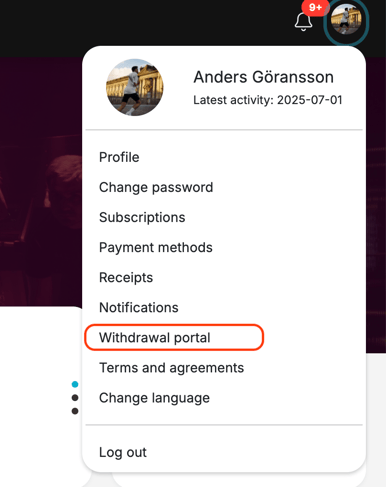
- The User profile menu: If logged in, a dedicated link titled Withdrawal portal is always accessible inside the main customer account sidebar menu, located right beneath the Notifications tab.
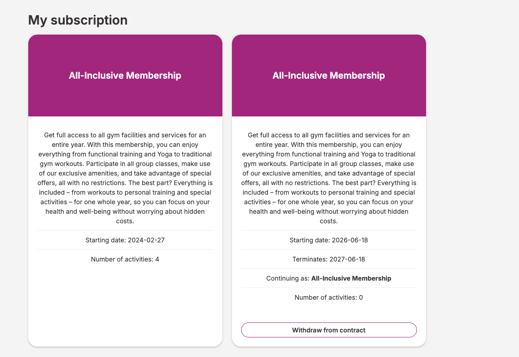
- The Subscriptions overview: Any active membership card that is still within its valid withdrawal period will display a clear Withdrawal from contract button at the bottom of its details window.
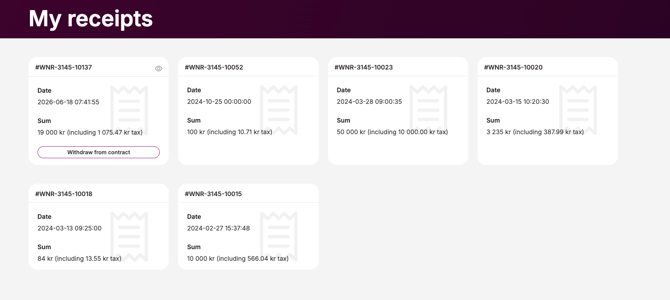
- The Receipts log: Inside the My receipts page, valid orders show a Withdrawal from contract button right next to the specific order number.
Step 2: Finding and choosing eligible orders
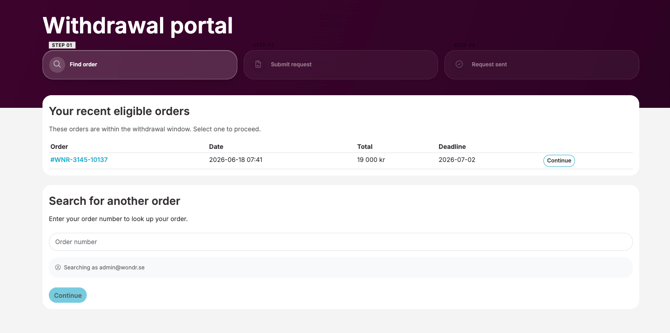
If a customer uses a direct link (like the one in their profile menu) instead of starting from a specific receipt or membership card, they will land on an order identification page. This page features two primary sections:
- Your recent eligible orders: A clean list displaying all of the customer's recent purchases that are still within the legal 14-day withdrawal window. It details the Order number, Date, Total price, and the exact cancellation Deadline. The customer simply needs to click Continue next to the correct item to proceed.
- Search for another order: A manual search bar where customers can type in a specific order number to look up their purchase if it does not automatically appear in their recent list.
Step 3: Refund calculation & legal notice
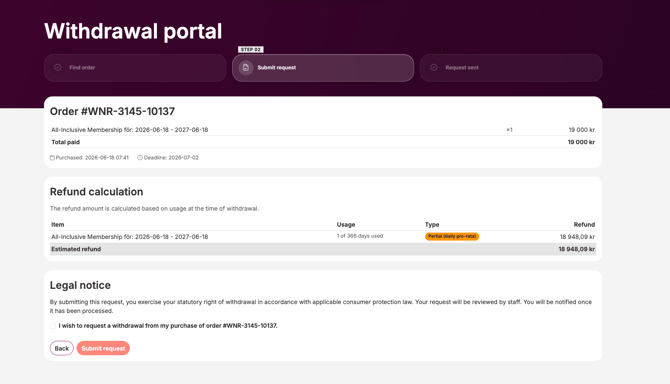
Once an order is selected, the customer proceeds to review their order details before finalizing the request. This page clearly breaks down the following sections:
- Order overview: Displays the total amount originally paid, the purchase date, and the final compliance deadline date for the cancellation.
- Refund calculation: The system automatically calculates usage on the fly (for example, showing exactly how many days were used), adds a Partial (daily pro-rata) status tag, and displays the Estimated refund amount.
- Legal notice & confirmation: A standard legal text explains the consumer's rights. To move forward, the customer must check the mandatory confirmation box: "I wish to request a withdrawal from my purchase of order..."
The Submit request button only becomes active and clickable after this box is checked.
Step 4: Success and confirmation receipt
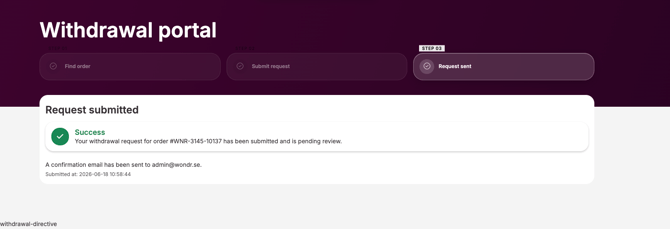
After the member submits a withdrawal request, the system instantly processes the request and updates the screen to show a green Success confirmation card.
This page lets the customer know that their request has been logged and is pending review by your staff. At the exact same time, the system automatically sends a timestamped confirmation email to the customer's registered email address to serve as their official receipt.
Last edited: 06-18-2026