
Table of contents
- Summary
- Turn the main device restriction on or off for your facility
- Reset a member's main device
- What members see
- Validation / testing
- Troubleshooting & known issues
Summary
- Wondr automatically designates the first mobile device a member logs in on as their main device. Only that device can be used to access your facility. Members who only ever log in on one device won't notice anything different. The restriction only comes into play if they try to log in on a second device.
- The restriction only affects facility access. Members can still use the rest of the Wondr app as normal on a secondary device: booking classes, checking their membership, payments, and so on all keep working. It's only access to your facility that's blocked there, so it can't be shared.
- Members can switch their main device themselves once every 30 days. If they log in from a non-main device and are eligible to switch, Wondr prompts them automatically.
- You can reset a member's main device at any time from their user profile. This is useful when a member gets a new phone or loses their old one.
- An admin can turn the restriction off entirely for your facility if you don't want it enforced, from
Settings > Permissions > App settings. - This restriction does not control which browser a member is logged into on a computer. That's handled separately through Smart rules.
Turn the main device restriction on or off for your facility
- Go to
Settings > Permissions > App settings - Toggle Restrict facility access to main device on or off.
Note: Only admins can turn this setting on or off.
Tip! Leave this on unless you have a specific reason to allow members to access your facility from multiple devices. It's what prevents accounts from being shared.
This setting applies to your whole facility. Individual members can't be exempted.
Reset a member's main device
- Go to
Usersand open the member's profile. - Scroll down to the Main device card, in the right-hand column of the profile.
- Click Reset.
- Confirm by clicking Reset in the dialog that appears.
The Main device card shows the model, OS version, and when it was claimed, so you can check which device is currently locked before resetting it.
Once you confirm, the card updates to show no main device is chosen. The next mobile device the member logs in with claims it as their new main device.
TIP! Use this when a member has lost their phone, switched to a new one, or reinstalled the app on iOS (see Troubleshooting below).
What members see
- On their main device, they can access your facility as normal, and the rest of the app works as usual.
- On any other device, the rest of the app still works as usual, but they're blocked from accessing your facility and see a message telling them to switch their main device or contact you.
- Members can switch their main device themselves once every 30 days. Wondr prompts them to do this automatically when they log in from a non-main device, if they're eligible.
.png?width=293&height=637&name=IMG_3443%20(1).png)
Main Device: Secondary device:
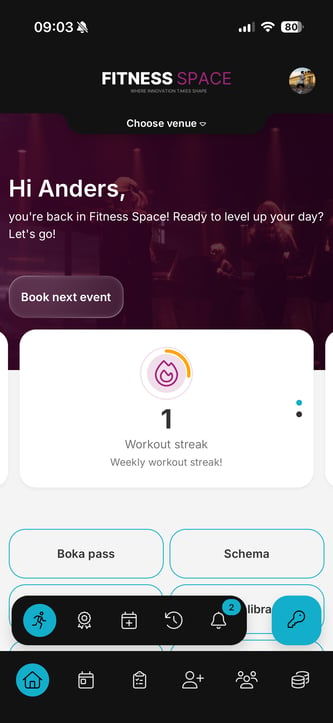
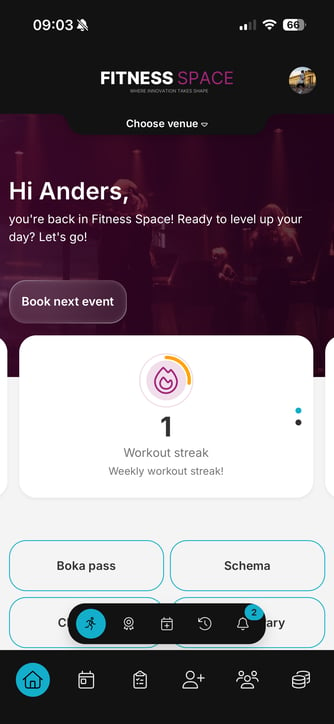
Main device: Secondary device:
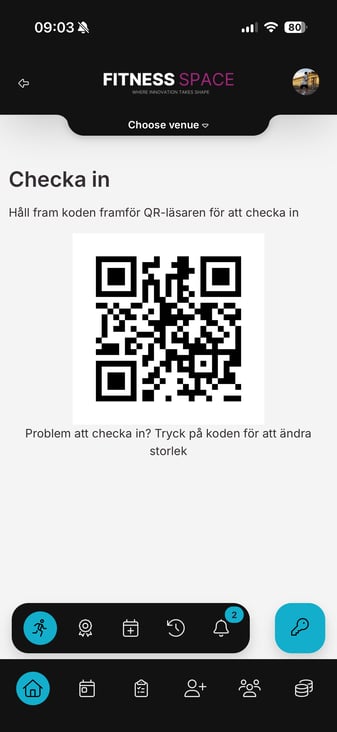
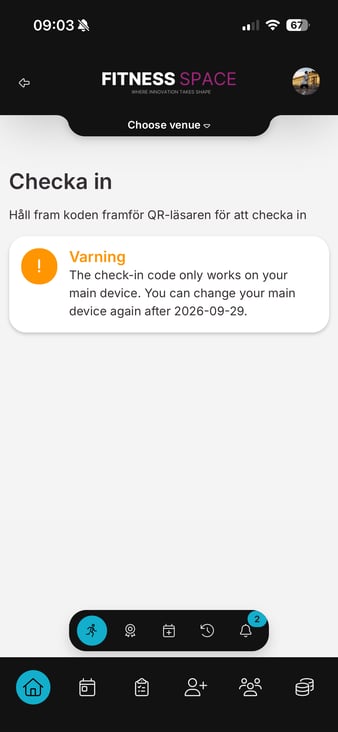
Validation / testing
- Log in to the Wondr app on a new mobile device with a test member account, and confirm that device becomes the main device.
- Log in with the same account on a second device, and confirm the member is blocked from accessing your facility on it.
- From the member's profile, click Reset main device, then confirm the next device they log in with becomes the new main device.
- If you've turned the restriction off, confirm facility access works from every device the member logs into.
Troubleshooting & known issues
- iPhone users who reinstall the Wondr app (not just update it) get a new device ID, because iOS regenerates it on reinstall. They'll be treated as logging in on a new device and may lose facility access until their 30-day switch window opens, or until you reset their main device from their profile.
- Facility access granted through certain older QR code links is not yet covered by this restriction. Support for this is planned as a separate update.
Last updated: 2/09-2026