
Table of contents
- Requirements
- Connect Mailchimp
- Choose the marketing consent
- Choose statuses and tags
- Sync existing customers
- Manage a single customer
- How the sync works
- Validation / Testing
- Troubleshooting & Known Issues
Requirements
- A Mailchimp account with at least one audience.
- A Mailchimp API key. You create it in Mailchimp under
Profile > Extras > API keys. - A marketing consent agreement in Wondr that is optional and that customers can withdraw. You can create a suggested one directly from the Mailchimp page.
What the integration does
- Syncs customers with an email address who have accepted the marketing consent agreement to your Mailchimp audience every night.
- Tags each contact, for example with their user status and whether they are a member.
- Lets you add your existing customers once, even without consent, except those who have said no.
- Lets Smart rules add and remove Mailchimp tags.
- Respects unsubscribes. Wondr never sets a contact who has unsubscribed back to subscribed.
What it does not do
- It does not delete contacts in Mailchimp. Removed profiles are tagged instead, so you can clean them up yourself.
- It does not update the consent in Wondr when a customer unsubscribes in Mailchimp.
- It does not follow email changes. If a customer changes email address in Wondr, a new contact is created in Mailchimp.
- It does not create tags for groups, membership types or labels.
Connect Mailchimp
Create an API key in Mailchimp
- Log in to Mailchimp.
- Go to
Profile > Extras > API keys. - Create a new key and give it a name you recognize, for example your facility name.
- Copy the key.
NOTE: Mailchimp only shows the full key once. Paste it into Wondr straight away.
Connect Wondr
- Go to
Settings > Communication > Mailchimp. - Paste the key in API key. When the connection works, you see Connected with key followed by the last characters of the key.
- Choose your audience in Audience.
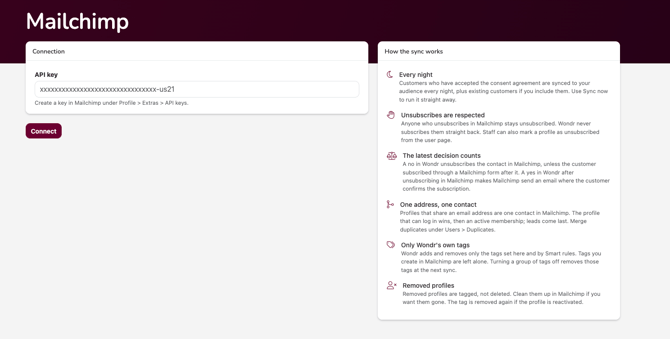
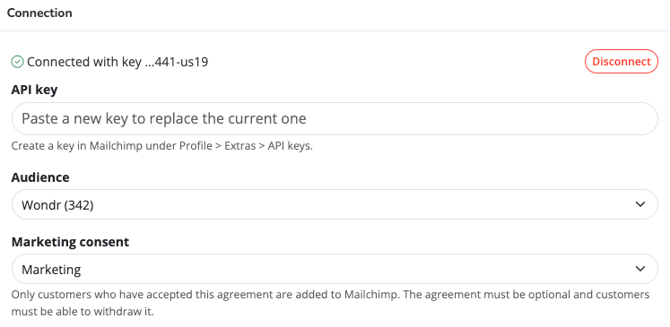
API key
To switch to another key, paste the new key in the field. ClickDisconnectto remove the connection completely.
Audience
The Mailchimp audience your customers are added to. The number in brackets shows how many contacts the audience has.
Choose the marketing consent
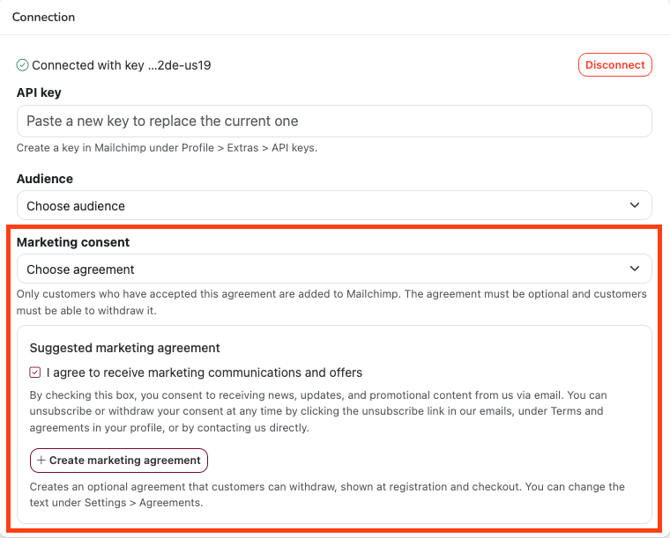
Only customers who have accepted the marketing consent agreement are synced to Mailchimp. The agreement must be optional, and customers must be able to withdraw it.
If you already have a marketing agreement
- Choose it in Marketing consent.
If you don't have a marketing agreement
- Under Suggested marketing agreement, read the suggested text.
- Click Create marketing agreement.
The agreement is created and chosen automatically. It is optional, customers can withdraw it, and it is shown at registration and in the checkout. You can change the text under Settings > Agreements.
TIP! If you use your own agreement, open it under Settings > Agreements and check that The user can withdraw consent is checked and that Consent is mandatory is not.
Choose statuses and tags
Each group of tags can be turned on or off with its own switch. Leave a tag field empty if you don't want a tag.
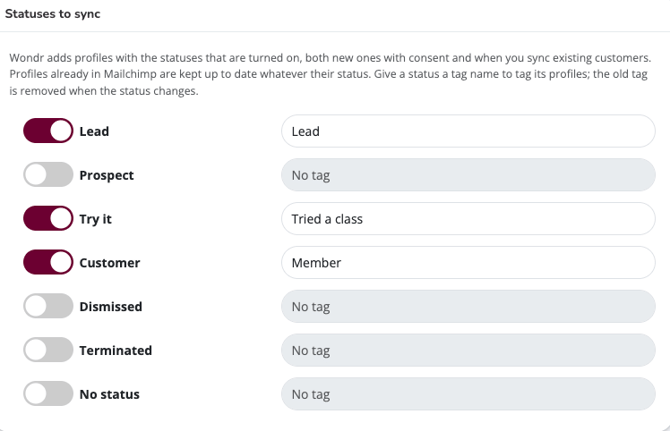
Statuses to sync
- Turn on the user statuses you want to sync, for example Customer.
- Enter a tag name next to a status if you want those profiles tagged in Mailchimp.
Wondr adds profiles with the statuses that are turned on. Profiles that are already in Mailchimp are kept up to date whatever their status. When a profile's status changes, the old status tag is removed and the new one is added.
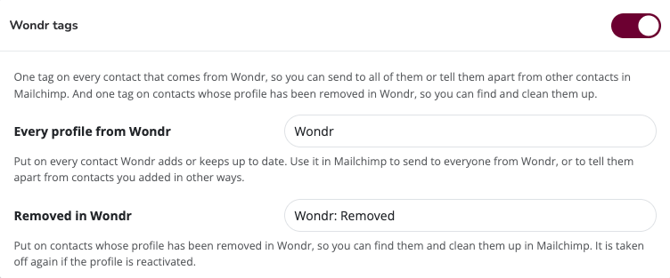
Wondr tags
Every profile from Wondr
Put on every contact Wondr adds or keeps up to date. Use it in Mailchimp to send to everyone from Wondr, or to tell them apart from contacts you added in other ways. Default: Wondr.
Removed in Wondr
Put on contacts whose profile has been removed in Wondr, so you can find them and clean them up in Mailchimp. The tag is taken off again if the profile is reactivated. Default: Wondr: Removed.
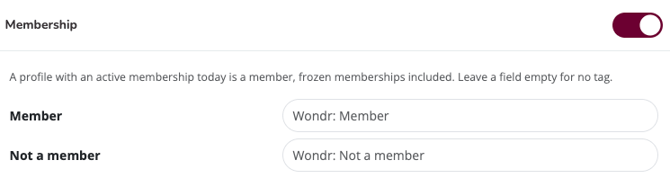
Membership
Member / Not a member
A profile with an active membership today counts as a member. Frozen memberships count as members too.
Save
- Click Save settings.
NOTE: Wondr only adds and removes its own tags, meaning the tags set on this page and by Smart rules. Tags you create in Mailchimp are left alone. If you turn off a group of tags, those tags are removed at the next sync.
Tags from Smart rules
Smart rules can add and remove Mailchimp tags with the actions Add Mailchimp tag and Remove Mailchimp tag. The tags are sent with the next sync.
Sync existing customers
SKIP this part if you only want to sync customers who accept the agreement from now on
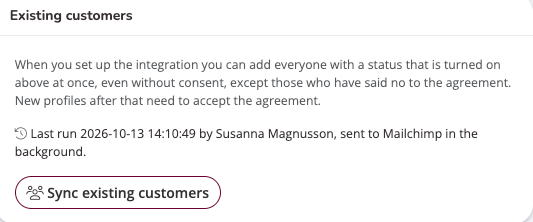
When you set up the integration, you can add everyone with a status that is turned on in one go, even without consent. Customers who have said no to the agreement are left out.
- Under Existing customers, click Sync existing customers.
- Read the summary. It shows about how many customers will be added.
- Click Yes, sync existing customers.
Mailchimp processes the customers in the background, which can take a few minutes. The time and the person who ran the sync are shown under Existing customers.
NOTE: Make sure you are allowed to send marketing to your existing customers before you do this. Everyone can unsubscribe through the link in every email. Customers created after this need to accept the agreement to be added.
Sync now
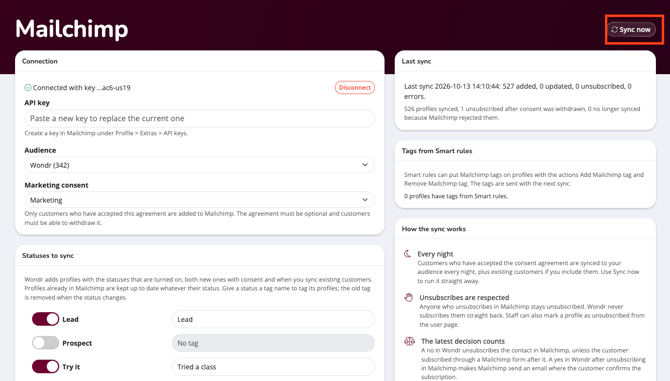
The sync runs automatically every night. To run it straight away, click Sync now at the top of the page.
Manage a single customer
You can see a customer's Mailchimp status directly on their user page.
NOTE: The Mailchimp option is only available once the profile has been synced to Mailchimp. If the profile has not been synced yet, the option is not shown in the menu.
- Open the customer's user page.
- Click the menu (⋮) in the top right corner.
- Click Mailchimp.
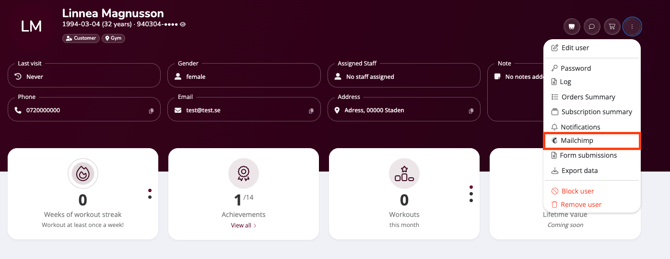
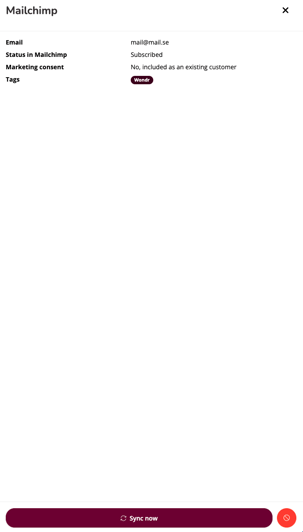
The panel shows the live information from Mailchimp:
| Field | What it shows |
|---|---|
| The email address used in Mailchimp. | |
| Status in Mailchimp | For example Subscribed or Unsubscribed. |
| Marketing consent | Whether the customer has accepted the agreement, for example No, included as an existing customer or No, the customer has said no. |
| Tags | The Wondr tags on the contact. |
Only the actions that apply to the customer are shown:
Sync now
Sends the customer's latest information and tags to Mailchimp right away.
Mark as unsubscribed
The red button. Use it when a customer asks to stop receiving marketing. The customer is unsubscribed in Mailchimp right away and a no is recorded on the marketing consent. The action is logged.
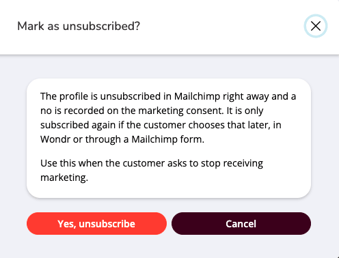
NOTE: After you mark a customer as unsubscribed, only the customer can subscribe again, either by accepting the agreement in Wondr or through a Mailchimp signup form.
How the sync works
Unsubscribes are respected
Anyone who unsubscribes in Mailchimp stays unsubscribed. Wondr never subscribes them again.
The latest decision counts
A no in Wondr unsubscribes the contact in Mailchimp, unless the customer subscribed through a Mailchimp form after it. A yes in Wondr after unsubscribing in Mailchimp makes Mailchimp send an email where the customer confirms the subscription.
One address, one contact
Profiles that share an email address are one contact in Mailchimp. The profile that can log in wins, then the one with an active membership. Leads come last. Merge duplicates under Users > Duplicates.
Existing Mailchimp contacts
Contacts that are already in your audience get Wondr's tags and name even without consent, but Wondr never changes their marketing status.
Removed profiles
Removed profiles are tagged, not deleted. Clean them up in Mailchimp if you want them gone.
Validation / Testing
- Check Last sync on the Mailchimp page. It shows when the last sync ran and how many profiles were added, updated and unsubscribed, plus any errors.
- In Mailchimp, go to
Audience > All contacts. Your synced customers have theWondrtag and the source API. - Open a test customer's user page and click
⋮ > Mailchimpto see their status, consent and tags.
TIP! Test with your own profile first. Accept the agreement, click Sync now and check that you show up in your audience.
Troubleshooting & Known Issues
- The page says "Choose an audience and a consent agreement to start syncing": Choose both Audience and Marketing consent. Nothing is synced until both are set.
- A customer is not added to Mailchimp: Check that the customer has an email address, has accepted the agreement and has a status that is turned on under Statuses to sync. Customers who have said no to the agreement are never added.
- The Mailchimp option is missing from the menu on the user page: The profile has not been synced to Mailchimp yet. Check that the customer meets the conditions above, then wait for the nightly sync or click Sync now on the Mailchimp page.
- A customer unsubscribed in Mailchimp but still has consent in Wondr: This is expected. Unsubscribes in Mailchimp are respected, but they are not sent back to Wondr.
- A customer changed email address and now appears twice: A new email address gives a new contact in Mailchimp. Remove the old contact in Mailchimp.
- Last sync shows profiles that are no longer synced: Mailchimp has rejected them, for example because of an invalid email address. Check the address on the customer's profile.
- Two profiles share an email address: Only one of them is synced. Merge them under
Users > Duplicates.
Last edited: 2026-10-513