
Table of contents:
Intro & payment status
To keep a good track of the finances of your facility, it is important that you follow up on any failed payments from your customers. Failed payments are orders that have not been completed for various reasons, and thus involve money that customers owe you.
So, to ensure good and healthy finances, it is important that you as the person in charge (or someone else on your team) follow up and work with failed payments on an ongoing basis.
You can find information about Failed Payments in the Dashboard and the tab "Economics" and in Reports.
To increase understanding, we start by looking at an order's journey from status Upcoming to Failed on a user profile in Wondr.
Upcoming
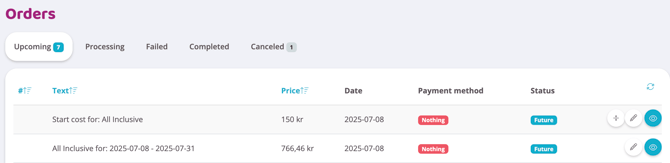
Upcoming orders that will be paid at some point in the future are collected here.
Processing

When an order is activated automatically or manually, it is moved from Upcoming to Processing and this is where orders are handled.
Depending on which default payment method the user has, different steps take place before an order is moved to Failed (or completed).
Card
Here, a withdrawal attempt takes place every day for a total of 6 days before an order is moved to Failed.
Autogiro
An order that is to be drawn against direct debit never automatically moves to the status Failed . The order remains under processing and continues to try to be drawn. This is because Bankgirocentralen sends all failed draws at the next draw attempt together with the next payment. If an order is not handled and paid, it can quickly lead to a very large lump sum of failed payments.
If you want a direct debit order to end up under Failed and stop the automatic redraw process, you can do this manually by clicking on the shopping cart for the order in question and then unchecking Automatic handling (uncheck “missed status”).
Swish
If the payment never goes through to Swish and staff completes the purchase, the order will go directly under Failed , but if the customer himself/herself makes a purchase with Swish and never pays, the order will instead be cancelled.
Invoice
An invoice is pending processing until it has been handled either in Fortnox or in Wondr's own invoice module.
Missing payment method
If the customer does not have a payment method on their profile, a withdrawal attempt is made before an order is moved to Failed.
Failed
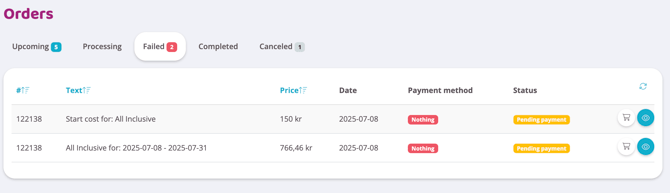
This is where orders that failed all withdrawal attempts end up and that need to be handled in order for you to receive the money.
Why an order fails
There can be several reasons why an order is not completed, below are some common examples:
Card
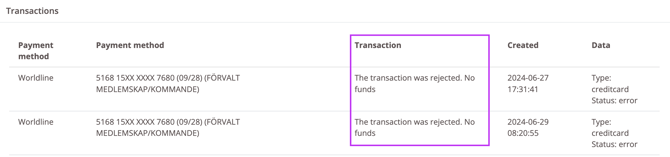
1. There is no money on the card. You can see in an error code if there is no money on the card, click on the eye next to the order in question to see the error code “No funds” under Transaction:
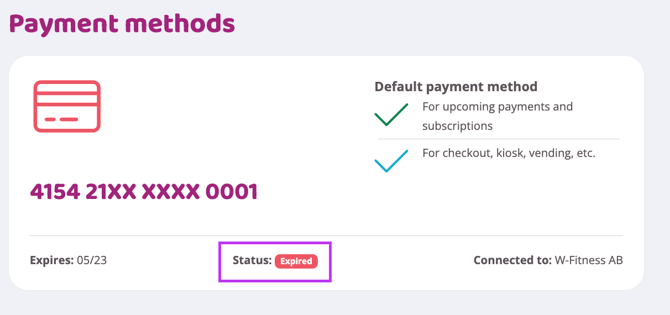
2. The card has expired. You can see if a card has expired directly on the user profile under payment methods, then it looks like this:
3. The card is blocked by the payment provider (in these cases, usually suspected of fraud). How long the card is blocked can vary depending on which payment provider you have. If the card is blocked in Stripe, we at Wondr may need to help, but if it is Swedbank Pay or Bambora, the block lasts for 30 days and then you can remove and add the card again for new withdrawal attempts.
You can see if a card has been blocked directly on the user profile under payment methods.
4. The card has lost its connection to Wondr. The fact that the card has lost its connection does not necessarily mean that there is something wrong with the card, it may be enough to remove the card and add it again. You can see that a card has lost its connection if the order is missing a transaction number.
Click on the "eye" next to the order in question to see the error code “Not found” under Transaction.
Autogiro
1. The Autogiro authorization has been removed at the initiative of the customer or the customer's bank. You can see if an authorization has been removed directly in the user profile under payment methods.
2. There is no money in the account. There is no error code for this that ends up during the transaction like there is with card payments, but to find out if a customer does not have money in the account, you have to look in the IN files under Economy - Autogiro. There is no search function here, but you have to actively go into each IN file and look to see the reason.
If you press Command-F / Control-F on your keyboard while inside a file, you can search for the customer's payer number to see if the customer is in that particular file.
If you do not receive any error responses in the IN files from the bankgiro center, this may be because you have an "old layout" and then you simply only receive the approved withdrawals in the IN files.
In this case, you must switch to "new layout" so that you also receive response files for the withdrawals that do not go through. You can do this by contacting Bankgirocentralen.
Invoice
An invoice only ends up under Failed if it is canceled in Fortnox.
If you have Wondr's own invoice module, only an invoice will end up under Failed if you answer no to the question whether the invoice should be canceled.
Missing payment method
If the user does not have any payment method added to their profile, it is clear why a payment fails, there is nothing to deduct money from. Should there be a case where you do not find any of the above errors and are unsure of what the failed payment is due to, you can always contact Wondr support and we will help you troubleshoot further!
Failed Orders Report
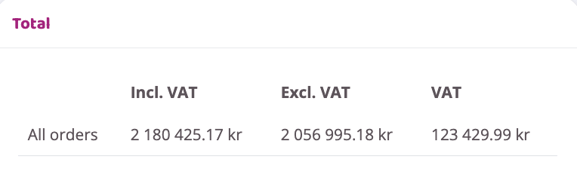
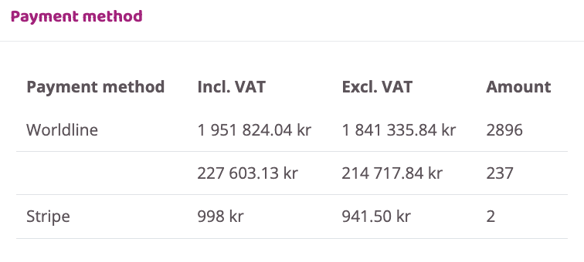
If you do not filter the search fields in the report, you will immediately see all failed payments for your facility under Results. You can also see a total amount and the total amount distributed by payment method. See the example below.
Total amount
Total amount divided by payment method
More precisely, what orders does the report consist of?
Card
Once an order has been moved to Failed on a user profile, the order is included in the report.
Autogiro
An Autogiro order will appear in the report as soon as the order has been moved to Processing on the user profile and will appear there until the order has been completed.
Invoice
An invoice will be visible in the report from the time it has been created until it has been posted in Fortnox and linked back with the invoice number to Wondr. The invoice will then be moved to the Paid Order Lines report regardless of whether the invoice is paid or not.
The same applies if you have Wondr's own invoice module.
Swish
Since the payment never goes through to Swish and if staff makes the purchase, the order is in the report.
Missing payment method
Once an order has been moved to Failed on a user profile, it is included in the report.
How can you then reach out to customers who, have an unpaid order?
To begin with, it's good to know that by default an automatic email is always sent to your customers as soon as they have a failed payment. The email looks like this:
“Hi XXX!
You have one or more missed payments. To prevent interruption of your service, please log in and resolve this as soon as possible.
Missed payments right now: 3
Kind regards,
XXX
https://www.wondr.se”
You can send an e-mail directly from the Failed Payments report by clicking the letter icon at the top right of the page.
One tip is that it is a good idea to tailor your e-mail according to the payment method your customers have.
Below are two examples of how this could work:
Example 1: If some customers lack a payment method, you can easily filter them out by selecting Without payment method under Payment method.
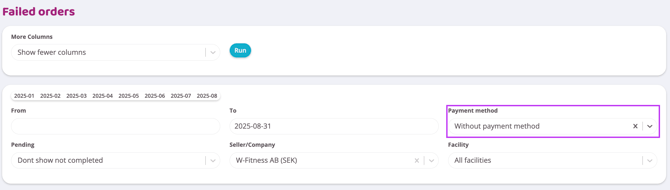
Under results, you will then see all customers with failed payments and who lack a payment method.
When you then click the send button, you will automatically include all users in your search.
In your mailing, you can then encourage these customers to log in to Wondr and add a payment method to their profile to handle the failed payments that exist.
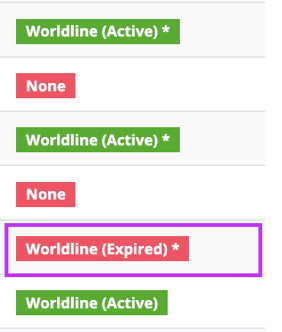
Example 2: If you instead filter under payment method on card payment (in this example Worldline), you will see all customers with failed payments who have a card as a payment method.
You can then see under results, for example, which cards have been dealt.
To capture some specific customers in a search, you can use our Wei function and this also works for mailings.
You can find Wei at the very bottom of the main menu on the left.
Select the customers who should receive the mailing under Name in the report and then click Run (the play icon) in Wei.
In the next step, you should select email to create the mailing. (You can also select notification or SMS if desired).
So according to the example above where some of the customers in the search have expired cards, you can easily reach these customers by marking them via Wei and then creating a mailing.
You can then inform these customers in the mailing that their card has expired and that they need to add a new card to handle the failed payments that exist.
Is there anything else you can do to handle failed payments?
Yes, there is! If you simply want to make another attempt to charge these customers, you can requeue a payment and new withdrawal attempts will be made.
You can also do this in the Failed Payments report by again using the Wei function.
If you want all orders in the search to be re queued, you can select the Current search lasso in Wei to capture all orders in the search, then click run.
If you only want to re queue some of the orders in the search, select them under order number (#) and then click run. Then select Queue orders to make new drawing attempts for these customers.
You can also re queue a single order directly from the user profile. To do this, click on the eye next to the order in question and then select Queue this order for payment.
Block user
If a customer does not handle their failed payments despite prompts, you can deny them access to the facility by blocking the user.
To block a user, go to the user profile and click edit details, scroll down and check the box Block this user from booking and checking in. Then save.
To unblock simply repeat the procedure above and de select the check box Block this user from booking and checking in and save.
Last edited: 5/1-2026