
Step 1
Make sure there is a week in the schedule that can be used as a template.
Step 2
Go to Schedule > Mass Editing.
Step 3
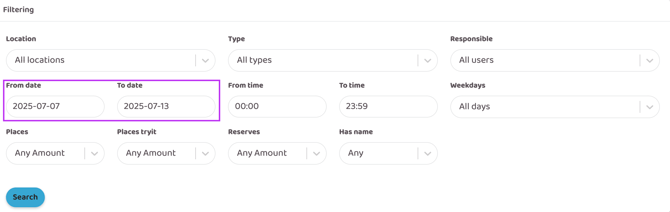
Filter the week to be used as a template by entering the week's date in the "From date" & "To date" fields (see image below for description). Then click "Search".
Step 4
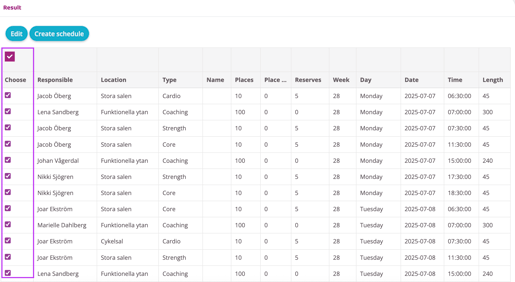
Scroll down a bit to "Results" and check all activities that should be included in the template. To automatically select all activities, click in the box above "Select" (see image below for description).
Step 5
When all activities to be posted have been selected, click the "Create schedule" button.
Step 6
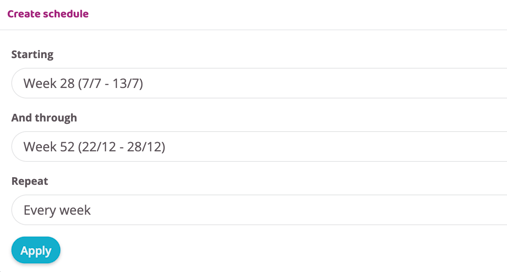
Specify which week the schedule should start and how long it should last.
If no selection is made in the "Up to and including" box, the schedule will only be posted for one week. Change that box to post from, for example, week 50 to week 19.
Also specify whether the schedule should repeat every week or some other interval such as every two or three weeks in the "Repeat" box (leave it as default if it should be the same every week).
Step 7
Click "Apply" and all selected sessions will be added to the schedule for the weeks selected in the last step.
Last updated: 8/7-2025