Activate the function
1. Contact Epassi to get: Username and Mac-key (you need these to activate the feature in Wondr).
2. Contact Wondr support and ask them to activate Epassi as a payment method and set up the correct accounting account.
3. Once the payment method has been activated in Wondr and you have the info from Epassi, go to: Settings > Payment & Shopping Cart > Epassi.
4. Enter the information below:
- User name
- Mac key
- Epassi country: Sweden
5. In order for the Epassi payment method to be selectable on subscriptionss/bookings, this needs to be activated on the respective type.
Epassi fee is not optional in Sweden!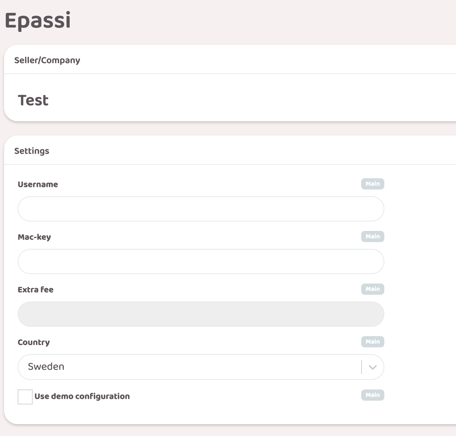
Activate Epassi on subscription
Epassi needs to be activated on each individual membership that will have the payment option. So the steps below need to be done on each individual subscription that will have Epassi as a payment option.
1. Go to: Settings > Users > Subscription Types.
2. Edit the subscription that will have Epassi as the payment method.
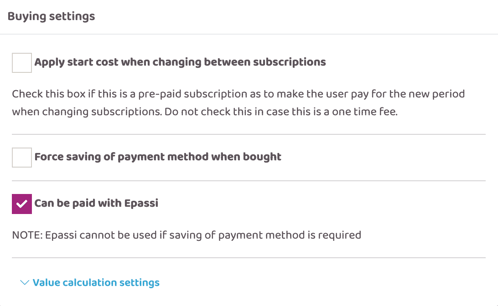
3. Check the box "Can be paid with Epassi".
*It is also possible as an Administrator to mass manage subscription types via Wei.
NOTE!
- “Force saving of payment method when purchasing (requires e.g. card payment)” must be turned off for the “Can be paid with Epassi” option to work.
- It is not possible to pay for a monthly subscripton via Epassi. This should only be done for subscriptons with a one-time fee / Start-up cost.
- The subscripton must have the same VAT rate on all costs in order for purchases to be completed at Epassi.
Activate Epassi on booking types
Epassi needs to be activated on each individual booking type that will have the payment option. So the steps below need to be done on each individual booking type that will have Epassi as a payment option.
1. Go to: Settings > Booking > Booking types.
2. Edit the booking type that should have Epassi as the payment method.
3. Check the box "Can be paid with Epassi".
*It is also possible as an Administrator to mass manage booking types via Wei.
The customer journey
At checkout, it will look like this for the customer:
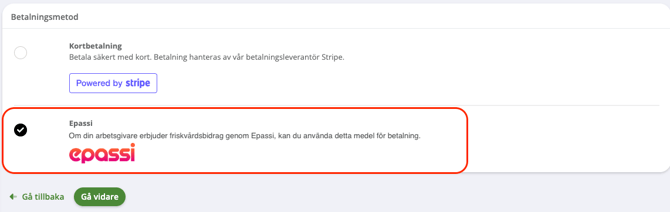
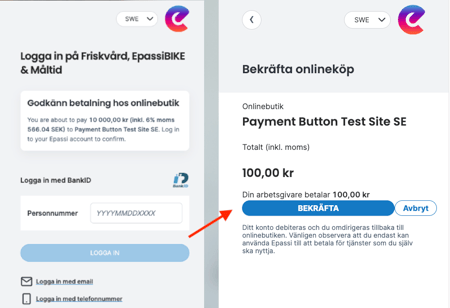
When customers choose Epassi, they will be sent to Epassi's page and allowed to log in with their social security number and BankID. There, they complete the purchase and are then sent back to Wondr's thank you page.