
Table of contents:
Intro
To customize a subscription for a user, it must be done when selling the subscription. If the user has chosen to purchase the subscription from the website, it is not possible to customize the subscription afterwards. In such cases, it must first be terminated and added again by staff. Only staff can customize a subscription.Please read the article: Sell subscriptions via the reception to find out more.
Do this
When adding a new subscription, press the "Customize button".
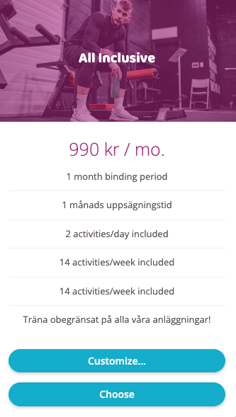
The following view becomes visible:
NOTE: Depending on the cost choices made for subscription (monthly cost, pass cost, initial cost, etc.), the available choices will vary.
Pricing
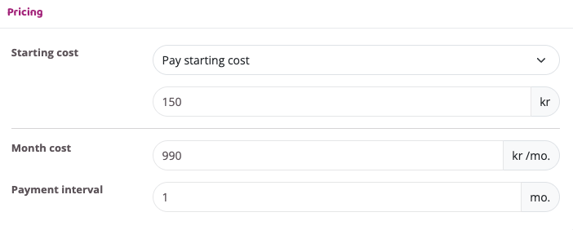
Start cost
Remove the start cost or change the start cost price
Month cost
Change or remove the monthly fee
Payment interval
Change the payment interval if, for example, the user wants to pay every other month instead of every month. Then the user pays double the fee every other month. If the user wants to pay every other month, write a 2nd or if they want to pay every third month, write a 3rd
Per activity
Change or remove the activity cost
Year cost
Change or remove the annual subscription fee
Date
Starting date
Change to a different starting date if the subscription will start later or if it started earlier
Paying from
Enter a different date (than the start date) if, for example, the customer is to be offered free days or if the customer has paid for a specific period in another way.
An example would be if you have a subscription that starts at the beginning of a month but you want users to be able to book activities before the subscription starts. Leave the start date as the current day but change the Pays from to the date the subscription should start.
Ceases
Leave "Never" pre-filled if the subscription should continue until the user cancels the subscription. Otherwise, select when the subscription should end in the drop-down list. If the option Immediately is selected in the drop-down list, the subscription will be canceled on the date specified in the Pays from field.
Binding to
Here you can change or remove the binding time for the subscription
Payment period
Sync with calendar month so that the monthly fee is always charged on the same day each month. The first payment will be charged for the remaining days of the month the subscription is signed.
Change to Not locked to calendar month and the customer will pay a full monthly fee today and will receive today's date as the payment date.
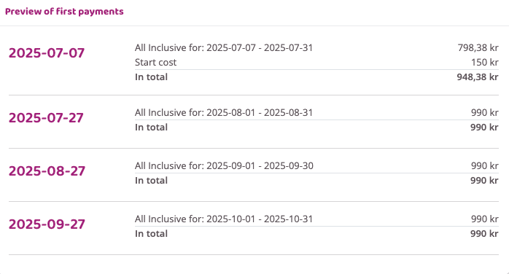
At the bottom of the customization view is a preview of the first payments. The preview changes in real time as the subscription is customized. Use this view to ensure that all customizations are correct.
Payment day
Change the date for when money will be deducted from the user's payment card. If the user has direct debit as their payment method, this does not matter. The money will be deducted when the file is sent regardless, so only applies to card paying users.
Press "Finish" to sell the subscription to the user.