
Standard
The default layout controls the closing phrase for all emails sent from Wondr. For example, it could be:
"Sincerely, Gym X"
or
"Greetings from your friends at XXX".
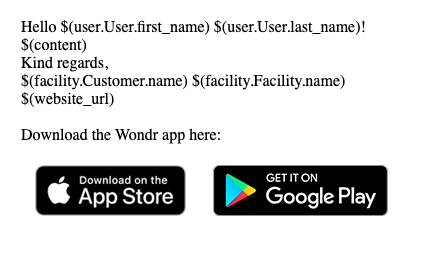
There is a layout from the start so you don't have to make any changes, this is completely optional. Without any changes, the layout looks like this:
Code form:
Text form:
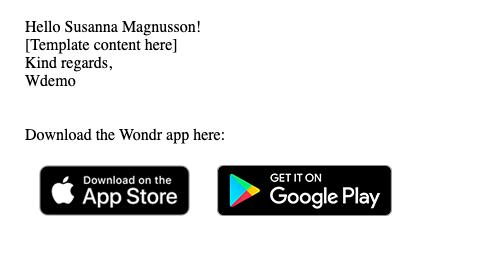
The name will of course be changed to the customers name and your facility name will be automatically retrieved.
The images are automatically linked to the Wondr booking app.
Change the default layout
-
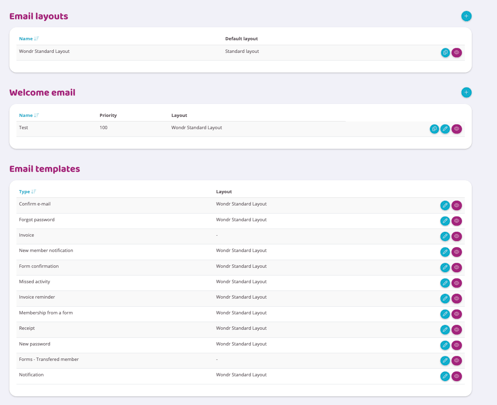
Go to Settings>Communication>Email.
-
Click the plus sign next to "Email Layouts".
-
The default layout will be copied to your new layout. This is when links to the booking app and codes that retrieve information such as name, textual content and facility name are retrieved.
-
Change the selected settings, an explanation for each can be found below
Name
Enter the layout name (internal only).
Default layout
If this layout is to be the default for all mailings that are made, this box should remain checked. Then all mailings from now on will use this layout instead of Wondr's standard. If it is not to be used on all but only on a few, then uncheck this box and instead go to the mailings that should have it and change the layout.
Content
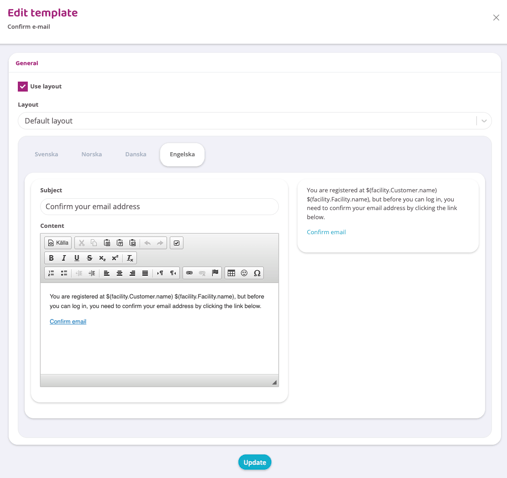
In the box on the left you can change the text and the box on the right shows how it will look. Change the text to the way you want it. An explanation of the different codes can be found below:
$(user.User.first_name) $(user.User.last_name)
Gets the recipient's first and last name (e.g. Sara Eriksson). For example, if you want to be a little more informal and just write "Hi Sara", simply delete $(user.User.last_name) and keep $(user.User.first_name).
$(content)
Retrieves all text from the email template that is sent out. So this should NEVER be deleted because then the email text will not be retrieved and the recipient will only receive "Hello XXX With best regards". Read the article Create a welcome email to learn more about how to change the email text.
$(facility.Customer.name) $(facility.Facility.name)
Retrieves your facility name. Can be removed and replaced with anything of your choice.
$(website_url)
Adds a link to your website. Can be removed if you don't want to link to it in this email.
Links to booking app
They are there by default and can be marked and deleted if you don't want them in the layout. If they are accidentally deleted, just click the "Add app links" button and they will be restored.
Last updated: 7/7-2025