
Table of contents:
1. Intro
2. Getting started
3. Cost
Intro
This article will describe step-by-step how to create an annual subscription. An annual pass means that the full amount is paid upon purchase and that the subscription automatically ends 365 days after purchase.
Getting started
Go to Settings > Customers > Subscription TypesCreate a new subscription by tapping the plus icon in the top right corner
Make all the settings for the subscription. To see how to create a subscription, see the article: Create a new subscription.
The next paragraph mentions the settings needed for the subscription to function as an annual pass
Cost
This type of subscription should always have a "Start cost" as the entire amount must be paid at once. Enter the cost in the "Start cost" box.
Is a start period included?
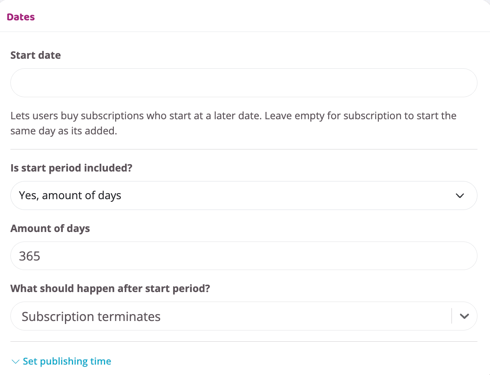
In the "Date" box there is a choice for "Is a start period included?".
Select "Yes, number of days".
Caution: Do NOT use a binding period for this subscription type
Scroll down to the "Is a start period included?" option instead.
Number of days
365
What will happen after the start period?
Subscription ends
The subscription will be valid for 365 days from the date the user subscribes and then automatically terminates. Because the "Start cost" was used, the full amount is paid immediately upon purchase. To create subscriptions that are only valid for e.g. one week or one month, enter the correct number of days in the "Start period" function.
See image below for example of correct start period settings:
Last updated 4/7-2025