
NOTE: Even if you only have one location at your facility, a location must be created in Wondr for the schedule to be work.
To create a location, go to Settings > Booking > Locations . Location means a room/area where activity can take place. For example, Group Training Room 1, Outdoor, Spinning Room, Cage Area, etc.
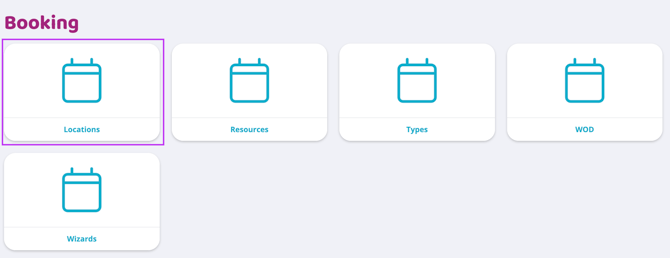
To create a new location, click Add (the plus sign) at the top right of the screen.
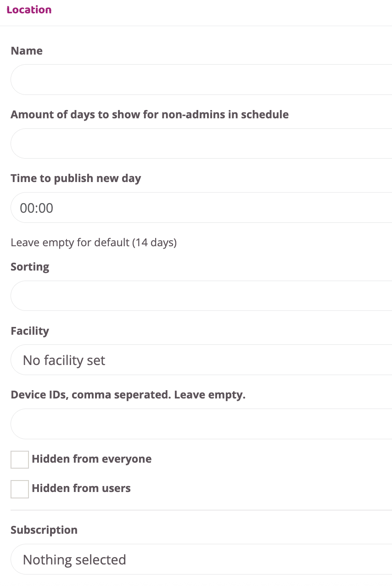
Below is an explanation for all the location settings. Only the name is necessary, the remaining settings are used as needed if you have a more advanced set-up.
Name
Enter the name of the location (for example, the main hall).
Amount of days to show for non-admins in schedule
Leave blank for default value or fill in number of days.
Time to publish new day
Specify the time of day activities should be published at this location. NOTE: This only needs to be filled in if this location is going to be different from the others, leave blank to follow the default value.
Sorting
Specify the order in which the locations should appear in the schedule, 1,2,3, etc.
Facility
Only available as a choice if there is more than one facility in your Wondr. This will indicate which facility this location belongs to.
Advanced: Device ID, comma separated
Used if special door rights connected to an entry system are to be available for this location.
Hidden from everyone
Check this box if you want the location to be hidden. This feature can be useful if you have a location called outdoor and is only used during the summer season. Then that location can be hidden during the winter season and visible during the summer season.
Hidden from users
Check this box if the location should be hidden from customers. For example, if there is a reception that is set up as a location with a staff schedule that customers should not be able to see.
Subscription
Specify which subscriptions that should be allowed to book the activities posted on this location. Leave blank if all subscriptions should be allowed to book.
To save all settings and create the location, click "Create".
Last updated: 4/7-2025