
Customers have two ways to get their bookings into their calendar. They should use only one of these, not both.
- Device calendar sync - syncs bookings straight to the customer's phone default calendar, but only refreshes when the customer opens the Wondr app. Customers who mainly use the facility's website and rarely open the app itself won't see this stay up to date.
- Calendar subscription - a link the customer adds to Google Calendar, Apple Calendar, or Outlook. Their calendar app then checks the link and pulls in updates on its own, without the customer needing to open the Wondr app at all. How often it checks depends entirely on the calendar app, not Wondr, and can't be sped up from our side.
NOTE: If both are turned on at the same time, every activity shows up twice in the customer's calendar.
🔷 Device calendar sync
- For this to work, the customer needs to give the Wondr app full access to their calendar. If they didn't allow this when they first downloaded the app, they need to go through their phone's settings to change it.
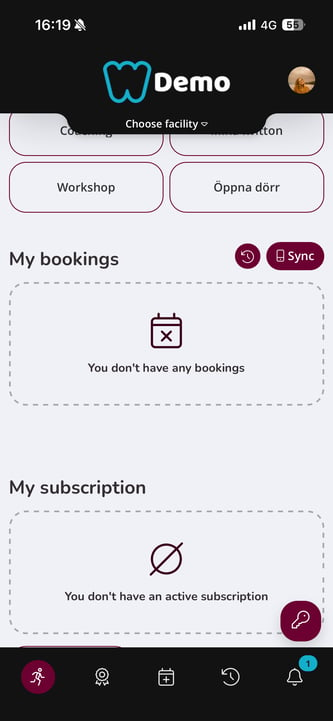
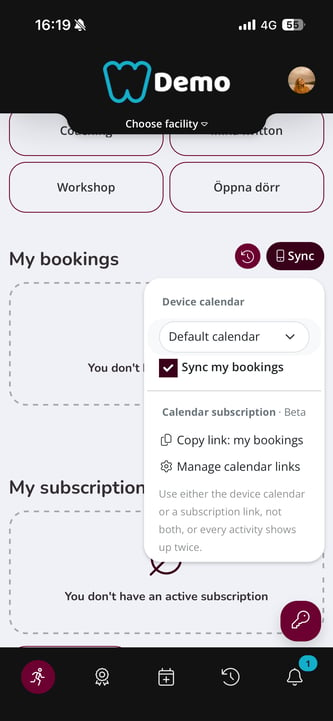
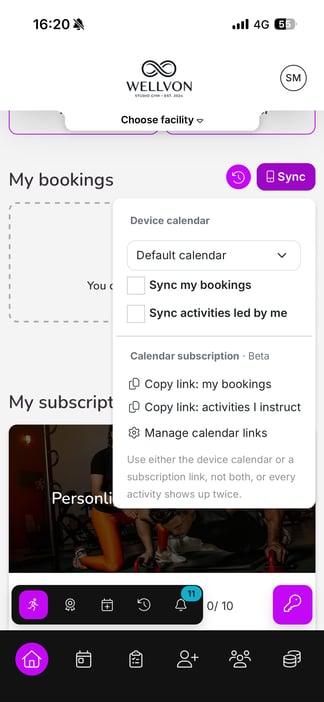
- They activate the syncing in the app by going to
My bookingsand tapping the Sync icon. - They check the box for Sync my bookings.
- They can also choose which calendar this should sync to: their device's default calendar, or another one.
This only needs to be done once. All of their bookings are then added automatically, and a booking disappears from the calendar if the activity is canceled.
NOTE: Device sync only refreshes when the customer opens the Wondr app. If they mainly book through the facility's website and rarely open the app, their calendar will fall out of date. Calendar subscription is the better option for these customers
🔷 Calendar subscription
- The customer goes to
Profile > Calendar subscription, or taps the Sync icon onMy bookingsand looks forCalendar subscription. - They tap Copy link: my bookings to copy their personal subscription link.
- In their calendar app (Google Calendar, Apple Calendar, or Outlook), they add a new subscribed/webcal calendar and paste in the link.
- On iPhone:
Settings > Calendar > Accounts > Add Account > Other > Add Subscribed Calendar, then paste the link. - In Google Calendar:
Settings > Add calendar > From URL, then paste the link.
- On iPhone:
- Their calendar app shows a preview and lets them name the calendar and pick a colour before confirming.
NOTE: This link should stay private. Anyone with the link can see the customer's schedule, even without logging in.
NOTE: Refresh timing is controlled entirely by the customer's calendar app, and Wondr has no way to speed it up. Read more about the intervals in the table below.
Typical intervals:
| Calendar app | Typical refresh interval |
| Apple Calendar | About once an hour by default (customers can change it to as often as every 5–15 minutes in the calendar's own settings) |
| Outlook / Outlook.com | Roughly every 1–4 hours |
| Google Calendar | Roughly every 8–24 hours, and not something the customer can adjust |
TIP! If a customer on Google Calendar says nothing is showing up, this is expected, not a bug. The fastest fix is to remove the subscribed calendar and add it again using the same link, which forces an immediate fetch.
TIP! If a customer needs a new link, for example because they've shared the old one by mistake, they can create one under Manage calendar links (in Profile > Calendar subscription).
Video guide for calendar subscribing
For instructors and staff
Instructors can sync both the sessions they're booked into and the classes they lead.
- For this to work, they need to give the Wondr app full access to their calendar. If they didn't allow this when they first downloaded the app, they need to go through their phone's settings to change it.
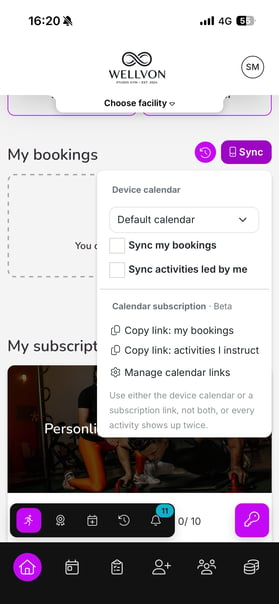
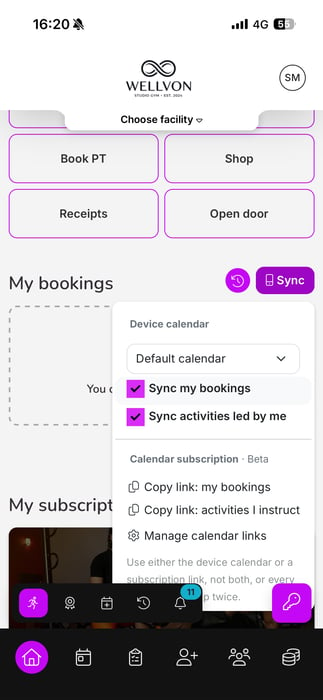
- They go to
My bookingsand tap the Sync icon. - They choose which calendar this should sync to: their device's default calendar, or another one.
- They can check the box for Sync my bookings if they're booked into a session themselves.
- They can check the box for Sync activities led by me to sync every session where they're listed as the instructor.
If there are any changes to the schedule, the calendar updates accordingly.
NOTE: Instructors can also use calendar subscription instead of, or alongside deciding between, device sync.
From the same Sync popup on My bookings, or under Profile > Calendar subscription, they'll see two separate links: Copy link: my bookings for sessions they're booked into themselves, and Copy link: activities I instruct for the classes they lead.
Each can be added to a calendar app independently, so an instructor could, for example, keep their own bookings on one calendar and their teaching schedule on another.
Troubleshooting & known issues
- Same activity shows up twice: The customer or instructor likely has both device sync and calendar subscription switched on. One of them should be turned off.
- Calendar isn't staying up to date: Device sync only refreshes when the customer opens the Wondr app. If they mainly use the facility's website and rarely open the app, their calendar will fall behind. Calendar subscription is a better fit for these customers.
- A new booking hasn't appeared yet in a calendar subscription: Expected. Refresh timing depends on the customer's calendar app, not Wondr. See the refresh interval table above, especially for Google Calendar, which is the slowest and not adjustable.