
Table of contents:
1. Intro
2. Logotype
3. Colors and shapes
4. Log in
5. Browser icon
Intro
Through branding, you can customize Wondr to your brand. Set colors, logo, browser icon, fonts, images and much more.
Go to Settings > Branding
Logotype
Here you upload your logo, it will be visible in the system and in the app. If you have a website through us, it will also be visible there. You can have different logos for different facilities. Click on All facilities and select which facility you want to upload a logo for and do this for each facility.
Do this:
(Steps 1-4 are for uploading a logo, if you have already uploaded it skip directly to step 5)
1. Click on the icon with two images.
2. Click Select file.
3. Select your logo from your computer files.
4. Click Upload.
5. Click on the logo and then Select.
If you want to change the font in Wondr, do this. If you have a website through us, this will also change the font on the website.
Title
Specify the font for titles.
Character width
Set the character width for titles.
Underline, Uppercase, Italic, Use detail color
Make more changes to titles.
Body text
Specify the font for the body text.
Colors and shapes
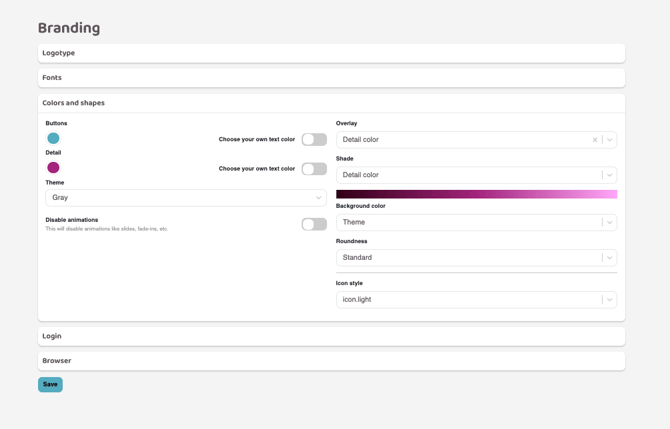
Enter your colors by clicking on the color wheel. Colors can be entered in HEX or RGB. You can also drag freely in the color box.
Buttons
Control buttons, menus and icons
Detail
Control smaller details in the system
Choose your own text color
If nothing is specified here, Wondr will automatically make the text white or black depending on how light or dark the background color is. If you want a specific text color, manually specify the specific color here.
Theme
Choose a color theme for the header color in Wondr (where the logo is). The options are:
- White
- Black
- Grey
- Button color
- Detail color
- Custom color
Overlay
Overlay color is an overtone that can be applied to banner images on memberships, for example. Here you choose which of the button and detail colors the gradient should have and whether the image behind should be "blurred" by clicking on Blur image.
Shade
Shades are applied in the scheme and in places where images have not been selected. To avoid using the same color everywhere, a gradient of the color selected here is used.
Background color
This decided the background color in Wondr
- Blue
- Grey
- Theme (decided from your branding colors to match)
Angular design
Click in this box to make your Wondr square instead of round.
Icon style
Choose the style of the icons in Wondr
Do this:
(Steps 1-4 are for uploading an image, if you have already uploaded it skip directly to step 5)
1. Click on the icon with two images.
2. Click Select file .
3. Select your image from your computer files.
4. Click Upload.
5. Click on the image and then Select.
Do this:
(Steps 1-4 are for uploading an image/icon, if you have already uploaded it skip directly to step 5)
1. Click on the icon with two images.
2. Click Select file.
3. Select your image/icon from your computer's files.
4. Click Upload.
5. Click on the image/icon and then Select.
Last edited: 5/5-2025