
Finding the report in Wondr
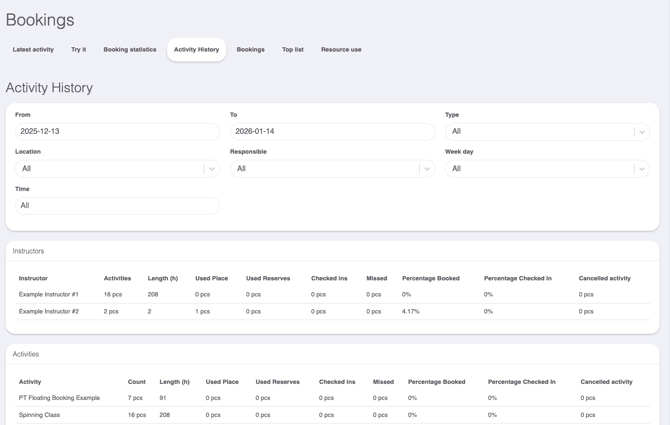
It is possible to obtain information in Wondr about how many hours an instructor or other staff has worked during a certain period of time. The report you should use is called Activity History.
1. Go to Reports > Booking > Activity History in the main menu
2. Select the Activity History report. This report shows activity history for all users including staff.
3. To produce data for a certain period, you need to filter by From-date and To-date
💡 It is also possible to filter by day of week, type of activity, location and responsible user.
The "Length (h)" column indicates hours per activity and can be filtered to include all staff. There is currently no summarization function, so you must manually add up the working hours.
Working with Excel
If you are used to working in Excel, we recommend that you download the file instead (filter only on time period). The steps below describe how to work with the file in Excel.
1. Select the top row and activate a filter on this row by pressing Sort & Filter and then Filter. A downward pointing arrow will then become visible on each column.
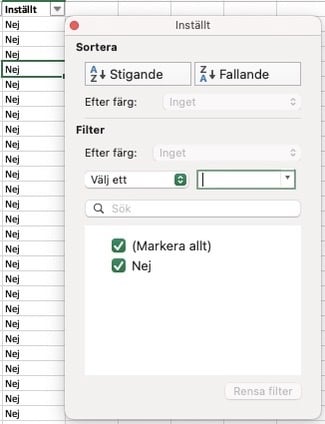
2. Go to the Set column and press the filter function.
3. Filter on No so that you see activities that have been completed and not canceled.
4. Then go to the Responsible column and click on the filter function. Filter on one user (staff) at a time.
5. Then select the Duration column. Excel will then automatically sum up the working hours.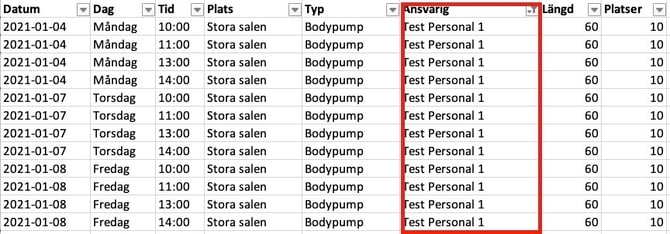
6. You will find the summary at the bottom of the margin bar under Sum . In the example below 1500 minutes.
7. Then continue and filter on the next person to get the working hours.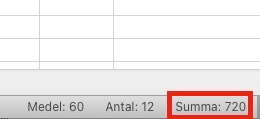
Last edited: 3/5-2025