
Watch or read
- The video and this article show exactly the same things, in the same order.
- The video is in English. If you prefer another language, you can read this article instead.
- Each part below shows where it starts in the video, so you can follow along in both.
You don’t need any earlier knowledge of Wondr. Your changes on the calendar are not applied until you review them and click Confirm & save.
In this article
- Open the schedule
- Turn on editing
- Add new activities
- Move and delete activities
- Review and save your changes
- Change one activity
- Find more help
1. Open the schedule
Video 0:00
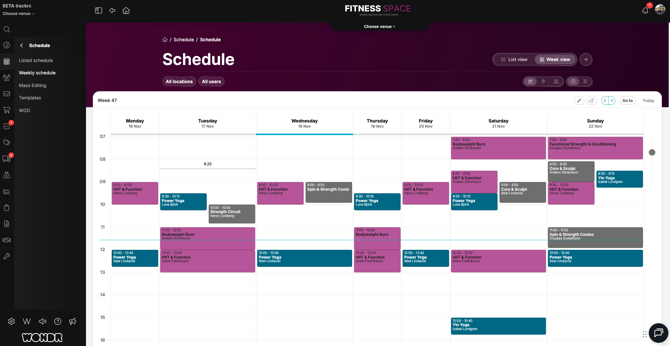
When you log in, you start on the Dashboard. To open the schedule, click Schedule in the menu on the left.
The schedule shows one week at a time. Each column is a day, and each row is a time of day. Each block on the calendar is an activity, for example a class. The block shows the time, the name of the activity and the instructor.
2. Turn on editing
Video 0:20
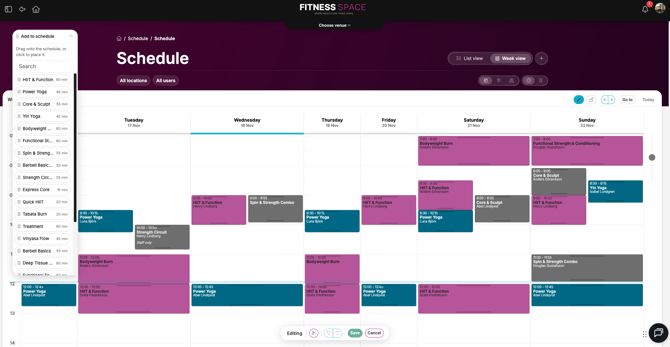
To make changes, click the pencil icon above the calendar (Edit schedule). The schedule is now in editing mode.
Two things appear:
- An
Editingbar at the bottom of the page, with the buttonsSaveandCancel. - An
Add to schedulepanel with a list of activities you can add.
3. Add new activities
Video 0:24
The Add to schedule panel lists your activity types and how long each one is, for example “Power Yoga, 45 min”. You can use the search field to find an activity type.
There are two ways to add an activity:
- Drag the activity from the panel onto the calendar.
- Click the activity in the panel, then click the place on the calendar where it should go.
TIP! If you clicked an activity and change your mind, press Esc on your keyboard to cancel.
4. Move and delete activities
Video 0:36
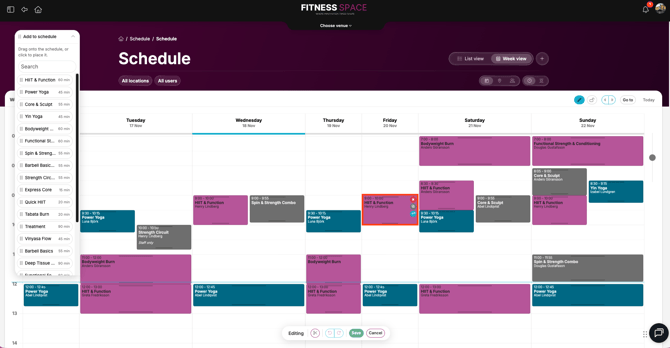
To move an activity to another day or time, drag it to its new place on the calendar.
When you point at an activity, a few small buttons appear on it. To delete the activity, click the red X.
5. Review and save your changes
Video 0:52
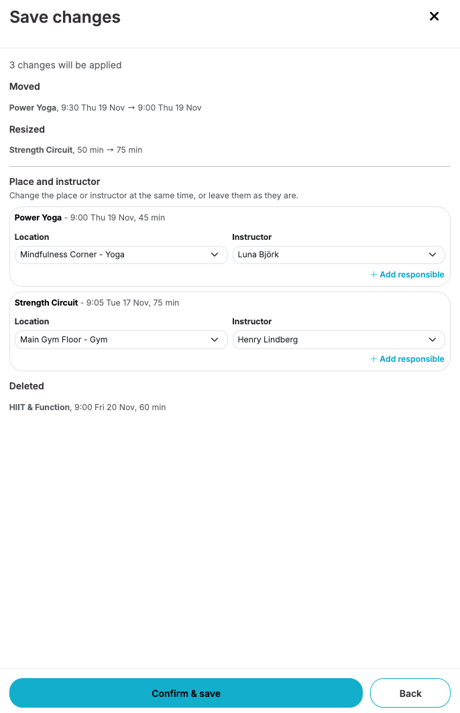
When you are done, click Save in the Editing bar. The Save changes panel opens. It shows a summary of all your changes, for example which activities are moved, new or deleted.
Before you save, check these parts of the panel:
- New activities: choose a
Locationand anInstructorfor each new activity. ClickUse the first for allto use the same choice for all of them. - Place and instructor: for moved activities, you can change the location or instructor at the same time, or leave them as they are.
- Booked customers affected: if customers are booked on an activity you delete, they are listed here.
Turn on Notify users about changes if you want to tell users about the changes. Then click Confirm & save.
NOTE: When you delete an activity that has bookings, the booked customers can be unbooked. Click Back if you want to stop and undo the change.
6. Change one activity
Video 1:22
To change the details of one activity, click it on the calendar. A panel opens with information about the activity, for example the time, the instructor, booked spots and participants.
Click the pencil icon in the panel to open Edit activity. Here you can change, for example, the activity type, the instructor, the number of spots, the waitlist spots and the times. If the activity repeats, the Repeat activity list shows all the dates.
Click Save. If the activity repeats, Wondr asks what to save:
Save this activity and future repetitionsSave only this activity
7. Find more help
Video 2:04
Do you want to know more? Search for “Edit the schedule directly on the calendar” on helpcenter.wondr.cc. The help article explains the schedule editor in more detail.
You only see the pages your role has access to. If you can’t find the pencil icon or the Schedule page, ask your facility admin for access.
Words you will see
Activity
Something on the schedule that customers can book, for example a class.
Activity type
The kind of activity, for example Spinning or Power Yoga. Each type has a set length.
Editing mode
The mode where you can add, move and delete activities directly on the calendar.
Instructor
The staff member who leads the activity.
Repetition
The same activity on another date. An activity can repeat, for example every week.
Waitlist spots
How many people can wait for a place when the activity is fully booked.
What’s next?
- User profiles
The next video in the education series. Learn how user profiles work.
- The new schedule editor - Edit the schedule directly on the calendar
A full help article with every setting explained.