
Watch or read
- The video and this article show exactly the same things, in the same order.
- The video is in English. This article is also available in other languages. To read it in your language, choose it in the language menu at the top of the help center.
- Each part below shows where it starts in the video, so you can follow along in both.
In this article
- Start on the dashboard
- Make Wondr look like your brand
- Let smart rules do the work
- Find answers in the help center
- Follow up with reports
- See and manage the emails your customers get
- Choose who the emails come from
- Where to read more
1. Start on the dashboard
Video 0:00
The dashboard is the first page you see when you log in. The menu on the left takes you to all main parts of Wondr, for example Schedule, Users, Reports and Settings.
2. Make Wondr look like your brand
Video 0:21
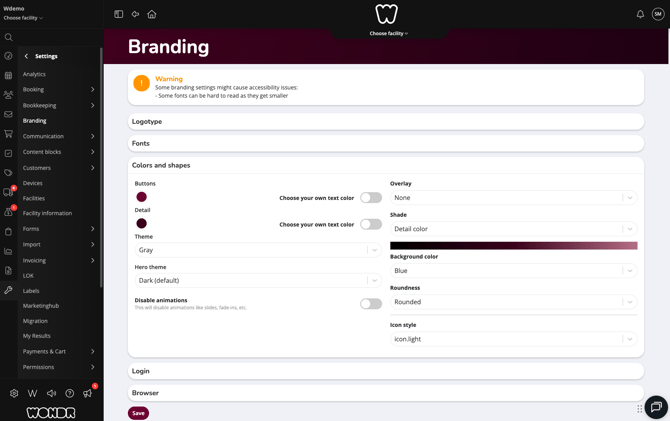
Go to Settings > Branding. Here you set how Wondr looks for your facility. The page has these parts: Logotype, Fonts, Colors and shapes, Login and Browser.
Click Save when you are done.
NOTE: Some branding settings can make the system harder to use. For example, some fonts are harder to read because they look smaller. A warning at the top of the page reminds you of this.
3. Let smart rules do the work
Video 0:44
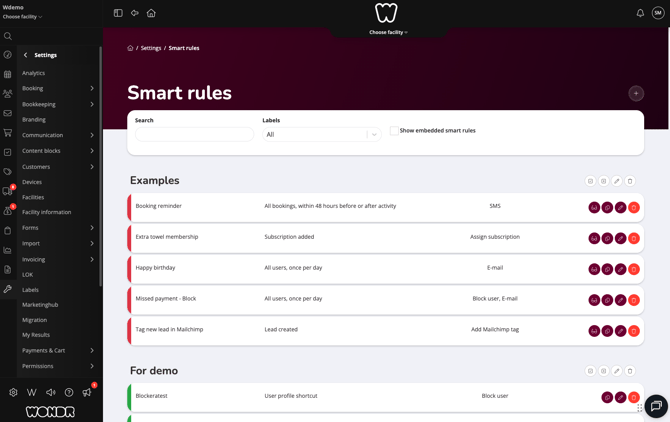
Go to Settings > Smart rules. A smart rule is something the system does by itself when something happens. Each row shows the name of the rule, when it runs and what it does.
Some examples from the video:
- Booking reminder: sends an SMS to everyone with a booking.
- Happy birthday: sends an email to the customer.
- Missed payment: blocks the customer and sends an email.
You can search for a rule or filter the list by label.
NOTE: Smart rules is an add-on module. If you don’t see it, your facility may not have it.
4. Find answers in the help center
Video 1:00
The help center has two parts: Education (like this article) and Help articles (guides for each feature). Type a word in the search field to find articles about it, for example “smart rules”.
TIP! If you can’t find what you need, click Create ticket to contact Wondr support.
5. Follow up with reports
Video 1:12
Click Reports in the menu. The reports are grouped by topic, for example Bookings, Checkin, E-mail and Economy.
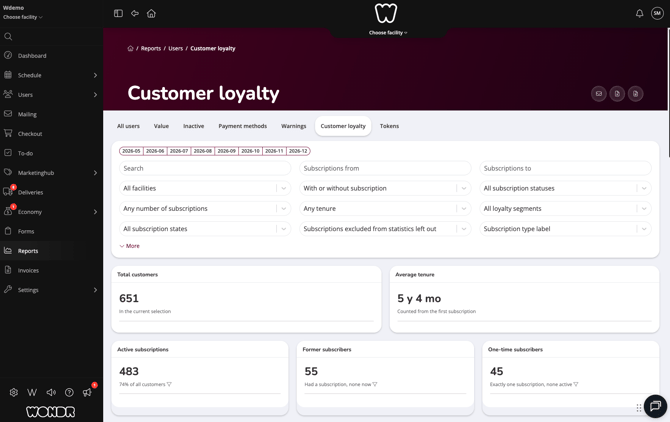
One example is Reports > Users > Customer loyalty. It shows how many customers you have, how long they have stayed on average, and a list of customers with their loyalty segment. Use the filters at the top to choose which customers to see.
TIP! From this report you can create a mailing to the customers in the list.
6. Manage the emails your customers get
Video 1:41
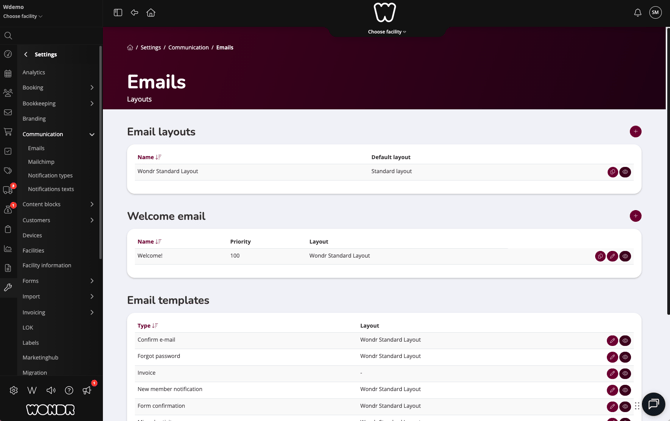
Go to Settings > Communication > Emails. This is where you manage all the emails the system sends to your customers. You can add new emails, change the ones you have and preview them here.
- Email layouts: the look of your emails.
- Welcome email: the email new members get.
- Email templates: other emails, for example when a customer forgets their password or gets an invoice.
Click + to add a new layout or welcome email. Click the pencil icon to change an email, and the eye icon to preview it. You can preview each email in all the languages your customers use.
TIP! Everything about emails and other communication with your customers is under Settings > Communication. There you also find Mailchimp, Notification types and Notifications texts.
7. Choose who the emails come from
Video 2:03
Go to Settings > Communication. In the Sender part, the global sender address is the address your customers see the emails come from.
NOTE: The email address must exist and have a validated domain.
8. Where to read more
Video 2:15
In the help center, Help articles are sorted into categories, for example Schedule and booking, Reports and Economy. Open a category to see all articles about that part of Wondr.
You only see the pages your role has access to. If a page in this article is missing for you, ask the person who manages permissions at your facility.
Words you will see
Dashboard
The start page you see when you log in.
Smart rule
An action the system does by itself when something happens, for example sending a reminder.
Report
A page that collects facts from the system, for example about customers or bookings.
Loyalty segment
A group that shows how loyal a customer is.
Email template
A ready-made email that the system sends in a certain situation.
Validated domain
The part of an email address after @ that has been checked and approved for sending.
What’s next?
- Create welcome email
A full help article about creating a new welcome email or editing the standard one. - Branding
A full help article with every setting explained.