
In the example below, bookings for all sessions close 30 minutes before the activity starts and customers can cancel up to 60 minutes before all activities.
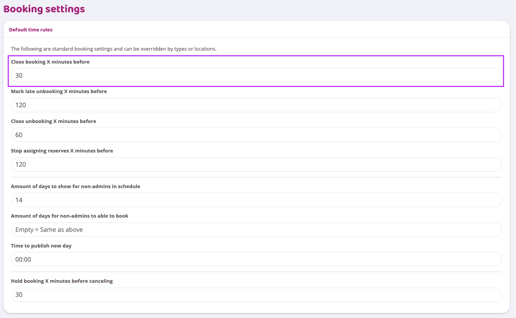
However, if an activity should have settings other than those specified in Settings > Booking > Time Rules, the Rules for the specific booking type need to be changed (see image below).
Edit the booking type that should have different settings and scroll down to Rules. It will then look like the image below:
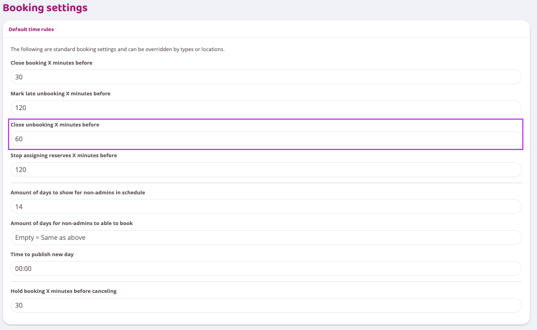
However, if an activity should have settings other than those specified in Settings > Booking > Time Rules, the Rules for the specific booking type need to be changed (see image below).
Edit the booking type that should have different settings and scroll down to Rules.
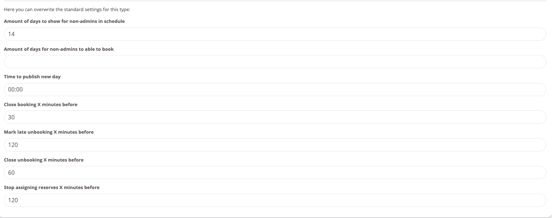
Here you can override the Booking Settings/Default Settings for this activity only. For example, if customers are allowed to cancel until the activity starts, enter 0 minutes in the cancellation box. This activity will then have its own cancellation setting without affecting the rest of the schedule's activities.
Last edited:9/7-2025