
Intro
To change terms and conditions, a new version of the existing agreement needs to be created. This applies to terms and conditions/agreements, personal data management, marketing and all different agreements that are posted for approval by new customers.
Do this:
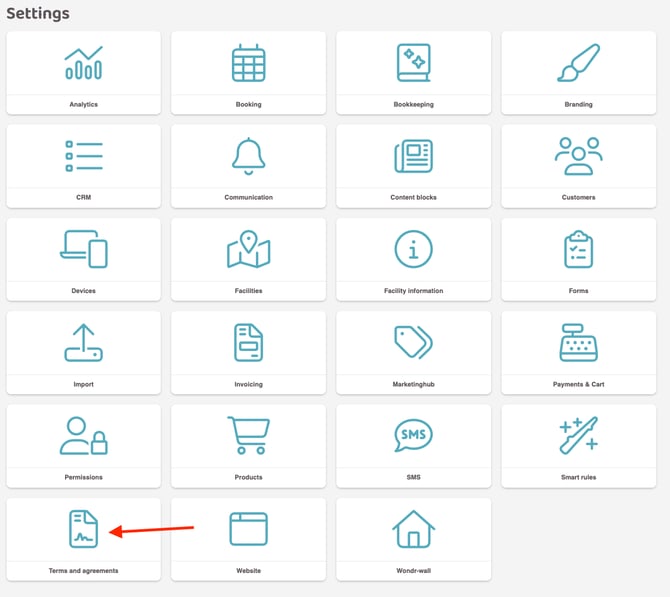
1. Go to Settings > Terms and Agreements . Here is a list of all the agreements new customers must agree to when purchasing a membership.
2. To change an agreement, tap the pencil icon on the right.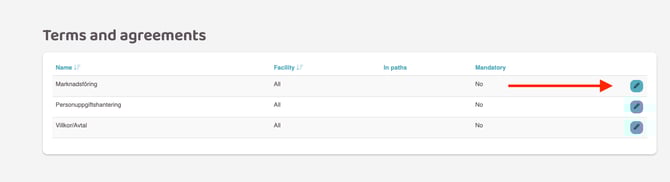
3. Scroll down to Versions, here are all versions of the agreement that have been previously posted, the date listed is when it was published. To create a new version, press the plus icon on the right.
The system will automatically pick the text from the latest version of the agreement. Change the part that needs to be changed, but the rest of the text can remain the same.
-
Version date
Today's date is automatically entered based on the day the agreement was created.
-
Text to display next to checkbox
Text describing the checkbox to approve the agreement is also automatically picked from the older agreement
-
Text to display in popup when user clicks
Show moreConditions, change as needed
-
Publish
Check this box to publish the terms and conditions in Wondr so that all new members will be required to sign this version instead of the old one. To just create a draft, leave the box unchecked and check it later to publish.
-
Force users to re-accept this term if they have already accepted an older version
Check this box to require members who accepted an older version to re-accept this agreement the next time they log in to Wondr.
Click Create.
Last updated: 4/6-2025