
https://app.heygen.com/videos/markedshub-del-1-27fbc081b597489a8374a480305a610e?proj=0ce144aa76df4956b493bda33451a6dd
- Requirements & Prerequisites
- Why Use the Marketing Hub?
- Features
- Making your first Campaign in the Marketing Hub
- Step 1: Creating a Campaign
- Step 2: Configuring your Campaign
- Step 3: Adding and Editing content using the Page Builder
- Step 4: Activating & Launching
- Step 5: Managing and Exporting Leads
- Validation & Testing Checklist
This article will outline the features of the Marketing Hub and show how to create and launch your first campaign in five simple steps. Additional resources to dive deeper into MarketingHub features can be found
Requirements & Prerequisites
|
Feature Requirement |
Plan Level |
|
Marketing Hub Access |
Professional (or higher) |
|
Advanced Forms (Optional) |
|
Why Use the Marketing Hub?
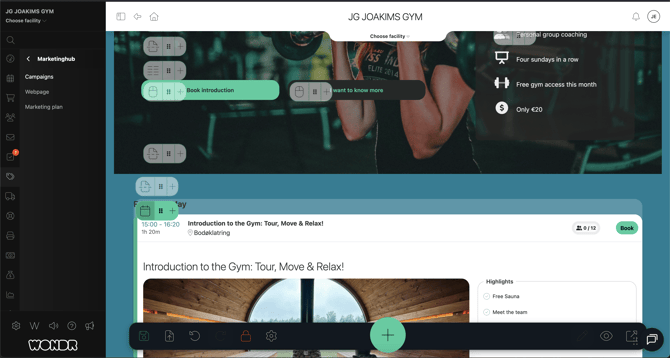
Build campaign pages to promote specific activities, using the Activities-block in the Marketing Hub.
The Marketing Hub is Wondr-native. This means the campaigns you create are directly wired to your live business operations, allowing you to:
- Sync Your Schedule: Pull live activities and facility availability automatically without manual embedding.
- Automate Lead Flow: Captured leads flow instantly into your CRM and can be automatically assigned to specific staff members for follow-up.
- Zero Technical Overhead: Receive a unique, fully hosted secure URL for every campaign without managing external hosting, servers, SSL certificates or any other technical jargon.
- Proven Templates: Access a built-in library of marketing campaigns designed and pre-tested specifically for fitness center growth.
🔗 See a demo campaign page here
Features
The Page Builder uses an intuitive content block system. It offers multiple blocks to control positioning and layout, text, headline, image, carousel and more. It also offers blocks which are natively integrated with your Wondr to showcase your activities, register new subscribers, present your staff, show off your products and more.
- Integrated Sales: Showcase and sell subscriptions and webshop products directly from the campaign.
- Dynamic Schedules: Filter calendars by location, activity type, or facility to show targeted, relevant classes.
- Booking Wizards: Offer a seamless, multi-step booking flow natively on your campaign page.
- Staff Profiles: Present your instructors and personal trainers, with photos, and options for direct contact details.
- Standard Elements: Maintain full control over your campaign layout, background, video, heading, text and more. Easy enough to use for someone without technical knowledge, and flexible enough for a designer to create what they want.
- Custom Code: Offers the option to add custom HTML/JavaScript to add features which Wondr does not natively offer, such as 3D Virtual Tours of your facility, Time Zone widgets and more.
Making your first Campaign in the Marketing Hub
Campaigns are standalone, high-conversion web pages hosted by Wondr. They are optimized for singular marketing goals, such as seasonal lead generation, challenges, or event registrations.
From the main menu, navigate to MarketingHub > Campaigns. The overview screen splits your workflow into three tabs: Active, Drafts, and Finished.
Step 1: Creating a Campaign
- Click Create New in the top right.
- Select one of three structural starting paths:
- Create Empty: A blank canvas for total custom layouts.
- Create from a pre-made layout: Raw layouts ready for structural modification.
- Create using pre-made campaign: Highly recommended. Turnkey campaign templates complete with tested ad creatives and tailored copy built to support your monthly financial goals.
Watch the videos below to see how to set up a complete campaign using each of the three starting options.
Creating Empty - Start from scratch
When you create an empty Campaign, you will start with only the Header and Footer element. Learn more about the various elements you can add to build your page in our article Content Blocks. Remember, if you want to design your own Header and Footer, those default elements can be hidden.
Premade Layouts - Start with Layout elements
When you create from pre-made layout your campaign will be created with the same elements as an empty campaign, but in addition provide some default Rectangle and Column elements to
Premade campaigns - Start with an Example Campaign
The difference between these campaigns and the ones you create from scratch is that these campaigns use ready-made templates, allowing you to simply add your own text and images. If you want to customize the template further, you also have the option to do so
Step 2: Configuring Campaign Settings
Upon creating your campaign, the settings panel will slide open automatically.
- General: Define your internal Campaign Title and select which physical facility the campaign applies to.
- Scripts: Connect analytics and tracking tools. Note that scripts added here apply only to this specific campaign. Use Header Start for immediate script loading (tracking) and Body for scripts executing after page render.💡 Pro Tip: To add global pixels across all your marketing campaigns, navigate to
Settings > MarketingHubto adjust global settings.. - Social Media Thumbnail: Upload the image that appears as a preview when the campaign link is shared across social media platforms (Facebook, Instagram, LinkedIn, etc.).
- Description & SEO: Craft an optimized search title and clear description to assist indexing on search engines like Google.
- Fonts & Backgrounds: Select your brand typography and main background images for the landing page canvas.
When you are satisfied with your configurations, click the X button in the top-right corner to close the settings panel.
Step 3: Adding and Editing content using the Page Builder
Once the configuration panel is closed, you enter the live visual builder interface.
- Editing Header and Footer: The Header and Footer are fixed blocks which you can adjust the settings, add links to and change colors for. If you want to create a custom Header- or Footer, you can hide the default blocks and build them using a Rectangle instead, with the “Full-width” setting turned on.
- Adding Blocks: Click the large green "+" icon to bring up the Content Block menu to select and insert new block types into your page.
- Editing Blocks: To adjust the settings or content for a particular block, click its respective Block Icon to change the data and settings for each block type.
- Removing Blocks: To remove blocks from the campaign, hover over the blocks and the “+”-icon, and press the Trash Bin icon to remove.
- Editing the Footer Information: Global facility contact information displayed in page footers is managed externally via Settings (Left Menu) > Facility Information.
To learn more about the available blocks in Wondr and how to use them, read this article on content blocks:
Understanding the Bottom Toolbar
As you design, keep an eye on the primary control toolbar located at the bottom-left of your screen:

|
Tool/Icon |
Action |
Description |
|
Floppy Disk |
Save |
Saves your current progress, this will update your published content as well. |
|
Folder + Arrow Up |
Save as Template |
Saves your unique layout as a reusable format for future initiatives. |
|
Arrow back |
Undo |
Undo, only visible if you have performed an action |
|
Arrow forward |
Redo |
Redo, only visible if you have un-done an action |
|
Lock |
Toggle to Block |
Locks the page editor to prevent other staff members from altering design choices. |
|
Cogwheel |
Settings |
Re-opens the General/SEO/Script configuration settings. |
|
Eye |
Preview Mode |
Previews layout rendering across responsiveness modes inside the app. |
|
Pop-out Arrow |
External Mode |
Open the published content in an external tab. |
Step 4: Activating & Launching
Once your page layout is complete, click the Back Arrow in the top-left corner of the builder to return to the specific Campaign Overview.
- Publishing: Scroll to the bottom of the overview interface and click Activate Campaign.
- Performance Tracking: Once live, this overview dashboard transforms to display essential performance metrics: Visits, Conversions, and overall Conversion Rate.
- Leads: If your Campaign has a button with the action "Lead to CRM", it will collect all submitted leads here. Click on a lead to follow them up. We recommend that you to call your leads and ask them to come by for an introduction. You can convert your leads directly to users by opening the lead in your CRM.
- Closing a Campaign: When a promotion concludes, click Finish Campaign. The URL will instantly become unavailable to the public. You can safely re-activate a finished campaign layout at any time.
Step 5: Managing and Exporting Leads
To successfully collect leads, ensure your page layout contains a Button with its action parameter set explicitly to Lead to CRM.
When a visitor fills out the form presented upon clicking the button:
- Submitted leads are created as a contact within your Wondr CRM.
- They are listed at the bottom of each Campaign respectively
- You can utilize Quick Buttons to jump directly to their newly made CRM Profile or perform a bulk download via the button on the right corner Export to Excel (.xlsx).
Validation & Testing Checklist
Before distributing any campaign link or embedding a live website, perform this standard testing procedure to guarantee data flow:
☑️ Mobile Responsiveness: Check that your Content looks great on all devices. We design on Desktop, but pressing the Preview button on the bottom toolbar in the builder will let you see your content at various breakpoints.
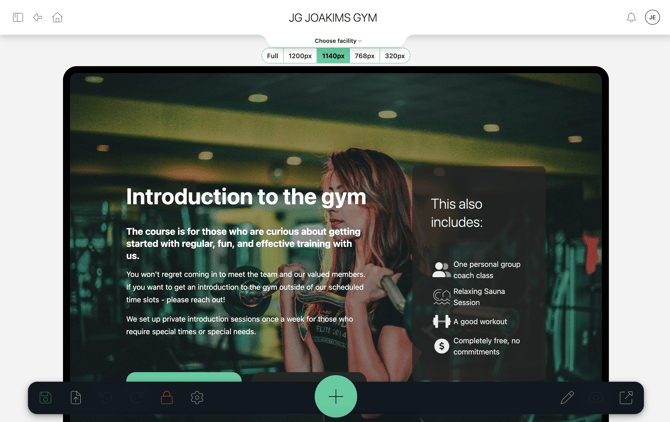
Use the Buttons above the content to view your content as seen from various screen sizes
☑️ Lead Routing Test: Click all the designated Call-to-Action buttons (e.g., "I'm interested"), submit mock information, and verify that the entry displays in the Campaign Overview lead section.
☑️ CRM Automations: If you have configured a CRM Note Create action, check your CRM after submitting a lead, to verify that the automated follow-up "TODO" task appears and is assigned to the expected Staffer.
☑️ Tracking Scripts: Verify third-party conversion pixels are executing accurately. Most platforms provide their own testing tools to ensure that the integration is set up correctly.
⚠️ Important Security Note: Custom Javascript tracking codes will not execute if you are actively logged into Wondr as an Administrator. To test tracking pixels correctly, you must open your campaign URL inside a fresh Incognito / Private browsing window.
Troubleshooting & Known Issues
Symptom: Accessing a campaign URL redirects visitors to a login screen.
- Root Cause: Your page includes data-blocks configured with strict system permission restrictions. For example, if your internal Class Schedule block is marked "Members Only", the system will force public traffic to authenticate.
- Resolution: Adjust block-level permissions inside the page builder to ensure public availability, or remove the restricted blocks from that particular public campaign canvas.
Symptom: Custom Code / Analytics scripts are not working.
- Root Cause: You are likely testing while logged into your administrator account or the script format contains unbalanced HTML tags.
- Resolution: Test using an Incognito window. Check for any syntax error in your custom code by checking the developer consol