
Skip to content
English
  • There are no suggestions because the search field is empty.

How do staff view their own schedule?

Guide to how staff can view their schedule – both for the full week and a quick overview of today’s activities.

    Quickly view today’s activities

    If you just want a quick overview of the activities you’re holding today, go to the Dashboard and select the “Today” tab in the menu.
    There you’ll see “My activities today”, which shows only your sessions for the current day.
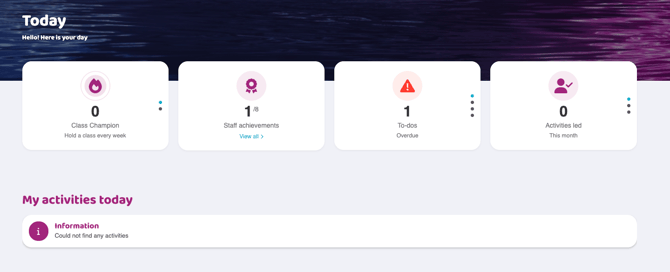
    Today dashboard showing summary cards for class champion, staff achievements, overdue to-dos, and activities led. The “My activities today” section displays an information message indicating no activities found.

    View your full weekly schedule

    Go to Schedule > Weekly Schedule.
    Click the “All users” button and select a person from the drop-down list.

    The schedule will now only display activities for the selected person.
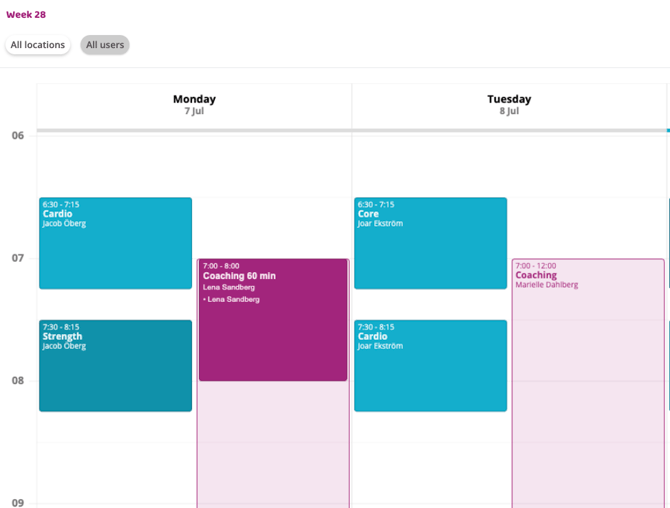
    Weekly schedule view for week 28 showing activities by day and time. Booked sessions are displayed as colored blocks with activity type, time, and responsible user for Monday and Tuesday.


    Last updated: 21/1-2026