
If you want to report an error or ask a question regarding the system, you can click Help in the bottom right corner and follow the instructions on the screen.
In this basic walkthrough we will look at the most common settings, we will not look at optional modules except for the Booking module. The text provides short explanations, the videos show it visually, and you will find relevant links to the help center at the bottom of each chapter.
There are a few things that recur in the system: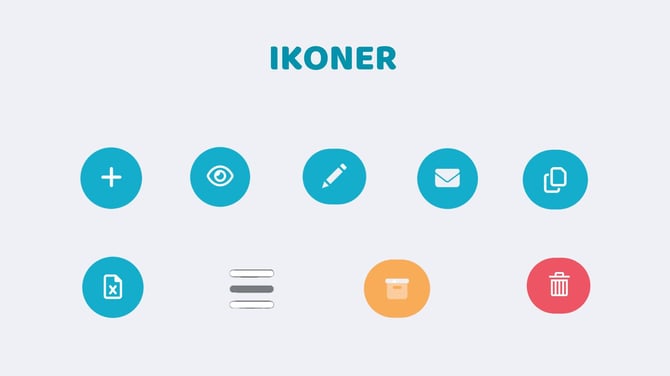
Icons
1. Plus sign = add/create something
Found in the top right corner or directly to the right
2. The eye = to look/open something
Found to the right of what you want to open
3. Pencil = edit something
Change something existing, found on the right
4. Envelope = create a mailing
Will send to the people who are filtered forward, found in the top right corner
5. Two sheets of paper on top of each other = copy something
A way to create an exact copy to edit and from that save something new
6. Paper with an X on it = download to Excel
Found in the top right corner, there is also a choice for CSV
7. Three dashes/Card with three dashes = open a menu
Can be either three lines or a small icon with three lines on the left
8. Archive box = archive something
Archive something to reuse or just hide
9. Trash can = delete something
Important to remember! Never throw away something that is active, for example if there are customers on a membership or the booking type is in the schedule, it should not be deleted
Confirm when you create or change something
If you make any changes or create something new in Wondr, you must always scroll to the bottom of the page and confirm with the button. The button may say Save, Update or Create.
Last edited: 6/9-2025