
Guide to how payment plans work in Wondr and what all the choices mean when creating one.
In this article, we will use the example that the customer purchases a subscription for 6000 SEK that is valid for 12 months and wants to split their payment over 12 months. Start by adding the desired subscription to the user profile.
To read more about how to add a subscription, read the article: Selling subscriptions through the reception.
This function is only for subscription with a one time payment. Subscriptions that are paid monthly to start with does not have this function. This is for subscriptions such as yearly cards, punch cards and so forth.
Do not adjust at this point to pay by card in part. If all other settings are correct, press 'Select' immediately. Scroll up to Orders on the customer's profile (the page may need to be refreshed for the order to be visible).
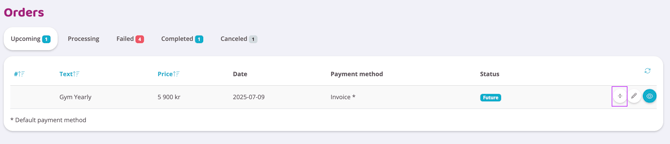
Once the order has been created under Upcoming, press the Payment plan icon (division sign) on the right to create an payment plan.
A box will then appear where you can enter the settings for the payment plan. See the image below for an example.
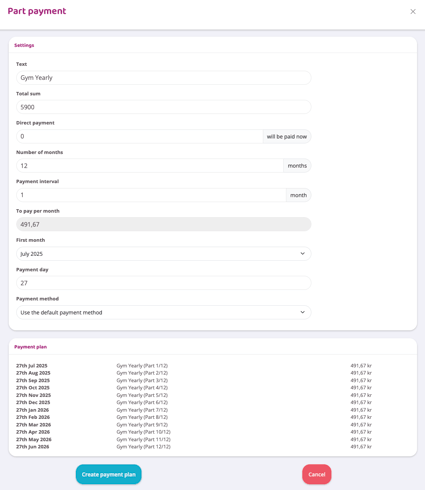
Here you can make several settings:
Text
Change the text for each order.
Total sum
Change the total cost of the clip card.
Direct payment
If the customer wants to pay a certain amount immediately, you can enter that amount here. This will then be paid today and deducted from the payment plan.
Number of months
Enter how many months the payment should be divided into. In this case, we choose 12.
Payment interval
Enter how many months at a time the membership should be paid. If the membership is to be paid every month, enter 1. If the membership is to be paid every other month, enter 2, etc.
To pay per month
Changes automatically when you change the remaining lines.
First month
Specify which month the member should start paying from.
Payment day
Specify which day of the month the member should pay on.
Payment method
Enter payment methods from the payment methods that are added to the customer's profile. If a new payment method is to be added, this must be done before you create the payment plan.
Payment plan
Overview of the entire payment plan, how the orders will look, amount, name, payment date,
etc.
When you are satisfied with the payment plan, press Create payment plan. The orders are now created according to the payment plan one month at a time. In this case, the subscription is valid for 12 months and the payment is divided over 12 months.
Last edited: 5/9-2025