
Intro
For all transactions that occur in Wondr (except invoices that go directly to Fortnox), you need to manually export the bookkeeping and import it into your accounting system. You do this using SIE files.
Every month, the bookkeeping should be exported from Wondr in the SIE-4 format and then uploaded into your accounting program.
Export your bookkeeping from Wondr
1. Go to Settings > Bookkeeping > Create accounting file
2. Click the plus sign (New export) in the top right
3. Select the 1st in "Period start" and the 30th/31st (depending on how many days the month contains) in "Period End" for the month for which the bookkeeping is to be exported.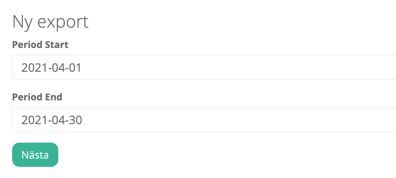
4. Click "Next".
5. Wondr now reads through all transactions that occurred between these dates.
6. If you now come to a page where it says "Orders left to fix", then there is an accounting rule that is missing or something else that has gone wrong and you need to contact Wondr support.
7. If you come to a page with several lists one after the other, the file is ready to download.
8. Then click on the small cirkle at the top right (SIE4i file).
The SIE4 file is now downloaded to your computer and the next step is to upload it into your accounting system. The example below will go through how the file is uploaded into Fortnox.
Upload SIE4 file in Fortnox
1. Go to Fortnox, click on your company name, and then select Import.
2. Upload the file (ending in .SI) that you downloaded from Wondr.
3. Complete the import (Contact Wondr support if anything goes wrong).