
Intro
In this article, we will describe step-by-step how to create a smart rule that reminds booked customers that they have a session X number of hours before the session starts via push notification.
In this example, we will assume that we want to send the reminder 4 hours before the session starts and that the message should be sent as a push notification.
Do this:
Go to Settings > Smart Rules
Click the plus icon in the top right to add a new smart rule.
Select trigger
The first step is to choose what type of event in the system will trigger the rule. In this case, we will choose the option "All bookings, within 24 hours before or after activity".
After you select "Trigger", it's time to set up the smart rule.
Start by filling in "Name", in this example we have chosen to name the rule "Activity reminder 4 hours before". Below there is a checkbox "Enable" to activate the rule, check it and the rule will take effect when you have finished creating it.
The next step is to choose how close to the activity the rule should be triggered. In this case we choose 4 hours before as this will mean that those who have booked a session will receive this reminder 4 hours before it starts.
*You can also choose a different X number of hours after/before the session if you think it works better for you.
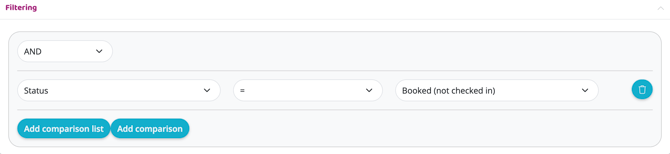
Under filtering, first press the "Add comparison" button.
Set as below:
In the first drop-down list, select "Booking - Status".
In the second drop-down list, select "=".
In the third drop-down list, select "Booked (not checked in)".
(In the top drop-down list where you choose between "and" or "or", leave " and " as is).
It should now look like the image below:
Add action
Now we come to "Actions" (what will happen)
Add an action via the plus sign.
Select "Notice". For this action there are a few more options, set as below:
Type
Choose which notice from your notifications to send to members
NOTE: Always create a new note that can be used for each specific rule, read the article Create a new note for guidance on how to proceed.
Text
"Use text from settings"
Then set "Repeats".
Number of days until this rule can run again: 1
Subject: Latest booking .
Press "Create".
Senast uppdaterad: 1/7-2025