
Watch or read
- The video and this article show exactly the same things, in the same order.
- The video is in English. If you prefer another language, you can read this article instead.
- Each part below shows where it starts in the video, so you can follow along in both.
You don't need any earlier knowledge of Wondr. We start on the first page you see and go step by step.
In this article
- Open the schedule
- Start a new activity
- Choose the activity, instructor and places
- Location, note and booking settings
- Set the date and time
- Repeat the activity
- Save and check the schedule
- Read more in the help center
1. Open the schedule
Video 0:00
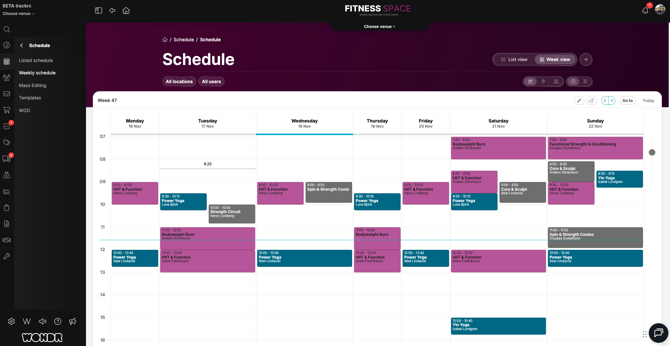
When you log in, you start on the Dashboard. The name at the top of the page shows which facility you are working in.
Click Schedule in the menu on the left. The schedule shows all activities at your facility. You can see it in two ways: Week view shows one week as a calendar, and List view shows the activities as a list, day by day.
2. Start a new activity
Video 0:20
An activity is something that happens at a set time, for example a class. There are two ways to add one:
- In Week view: move the mouse to the day and time when the activity starts. A line shows the time. Click, and the
Create activitywindow opens with that day and time already filled in. - In List view: click
+in the top right corner. The same window opens, but you choose the day and time yourself.
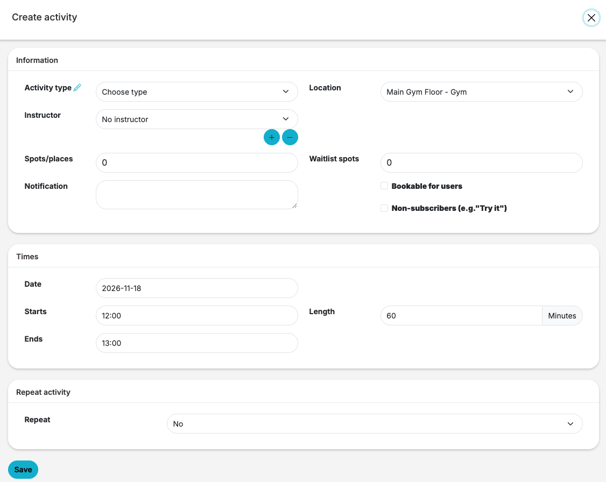
The window has three parts: Information, Times and Repeat activity. The next parts of this article go through them from top to bottom.
3. Choose the activity, instructor and places
Video 0:42
Start with Activity type. This is the kind of activity, for example Spinning or Yin Yoga. When you choose one, some fields fill in by themselves, for example the length.
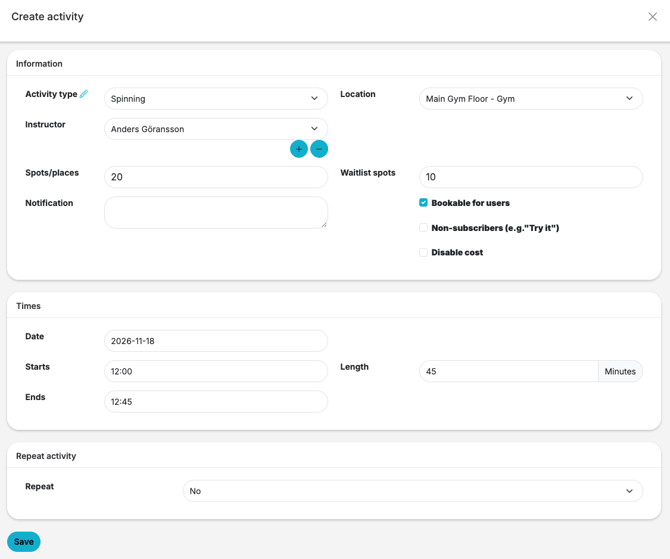
In Instructor, choose the person who leads the activity. In Spots/places, write how many people can join. In Waitlist spots, write how many more people can join the waitlist when the activity is full.
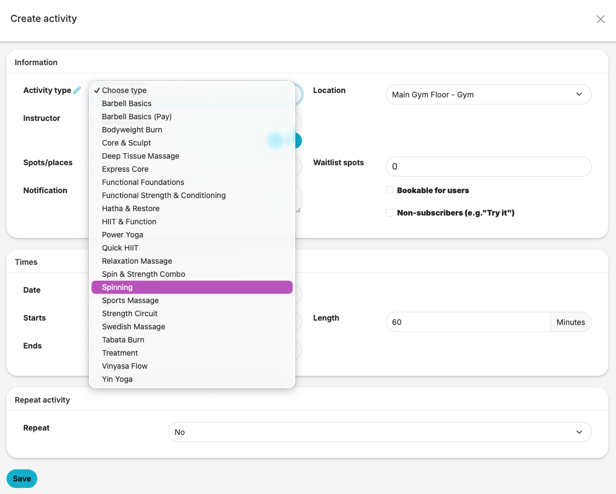
TIP! You can change any value that was filled in for you. The values only apply to this activity.
4. Location, note and booking settings
Video 1:05
In Location, choose the room where the activity takes place. In Notification, you can write a short note about the activity. In the video, the note is "Staff only".
Below Waitlist spots there are three checkboxes:
Bookable for users: members can book the activity.Non-subscribers (e.g. "Try it"): people without a subscription can book the activity, for example a trial class.Disable cost: the activity has no cost.
5. Set the date and time
Video 1:38
In Times, check the Date and the time the activity Starts. Length is the length in minutes. When you change the length, the time in Ends changes too.
6. Repeat the activity
Video 1:50
Most activities happen more than once. In Repeat activity, choose how often the activity repeats, for example Every week. In Until, choose the last date. With Ignore saturday/sunday, you can leave out weekends.
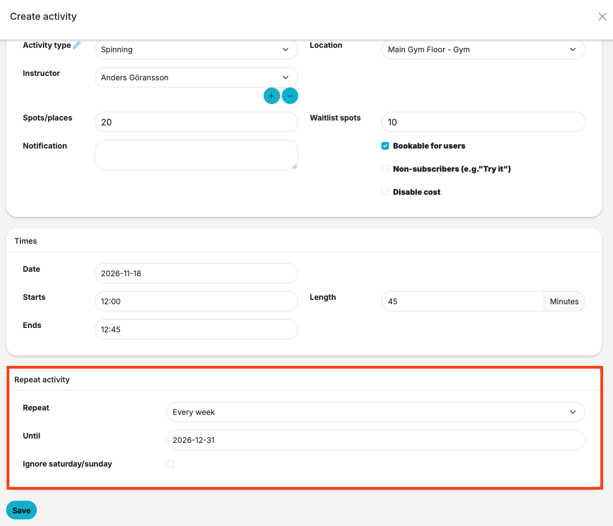
NOTE: If you don't change Repeat, it stays at No and the activity happens only once.
7. Save and check the schedule
Video 2:14
Click Save. The activity now shows in the schedule, with its name, time and instructor. If it repeats, you see it in the following weeks too.
8. Read more in the help center
Video 2:25
Do you want to know more about each setting? Go to helpcenter.wondr.cc and open Help articles > Schedule and booking. There you find a full guide to the Create activity window.
NOTE: You only see the pages your role has access to. If you can't find Schedule in the menu, ask the administrator at your facility.
Words you will see
Activity
Something that happens at a set time in the schedule, for example a class.
Activity type
The kind of activity, for example Spinning. Each activity in the schedule has one.
Instructor
The person who leads the activity.
Spots/places
How many people can book the activity.
Waitlist
A queue for people who want to join when the activity is full.
What's next?
- Edit the schedule
The next video in the education series. Edit and make changes to your schedule.