
Watch or read
- The video and this article show exactly the same things, in the same order.
- The video is in English. This article is also available in other languages. To read it in your language, choose it in the language menu at the top of the help center.
- Each part below shows where it starts in the video, so you can follow along in both.
You don’t need any earlier knowledge of Wondr. Nothing is saved until you click Create type at the end.
In this article
- What a booking type is
- Find your booking types
- Choose the type of activity
- Presentation
- Costs
- Rules
- Access
- Advanced
- Save your booking type
- Where to get more help
1. What a booking type is
Video 0:00
A booking type describes an activity that your members can book, for example a spinning class. It holds the name, the price, the rules and who is allowed to book.
You create the booking type once. After that, you can use it again and again.
2. Find your booking types
Video 0:25
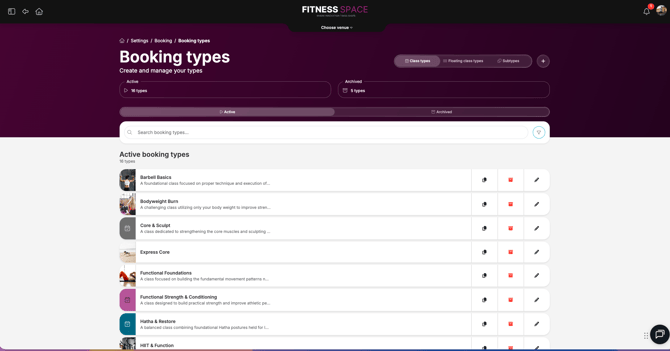
Go to Settings > Booking > Types. The Booking types page opens.
This page shows all booking types at your facility. At the top, you can switch between Class types, Floating class types and Subtypes. You can also see how many types are Active and how many are Archived.
Click + at the top right to create a new booking type.
3. Choose the type of activity
Video 0:35
The Create class type window opens. At the top, there are six tabs: Type, Presentation, Costs, Rules, Access and Advanced. This article goes through them in that order.
On the Type tab, you choose what kind of activity this is:
Class type: a standard class with scheduled bookings and sessions.Floating class type: flexible booking times, for example personal training (PT) or massage.Subtype: a type that is used inside a floating class type.
In the video, we choose Class type.
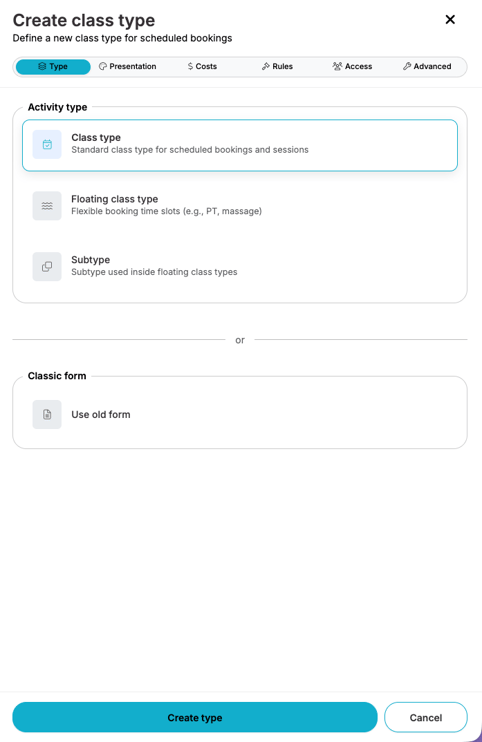
NOTE: Below the three choices, there is also Use old form. This article only shows the new form.
4. Presentation
Video 1:13
The Presentation tab is about how the booking type looks to your members.
Information: the name, a short summary and a longer description. In the video, the name is “Spinning”.Labels: labels group booking types together. Smart rules and reports can then use the label, instead of each booking type one by one.Visuals: an image from the media library, a video link and a color.USPs (Unique Selling Points): short selling points, up to 25 characters each.External link buttonandQuestion / Message: add a link button, or let the member leave a message or answer a question.
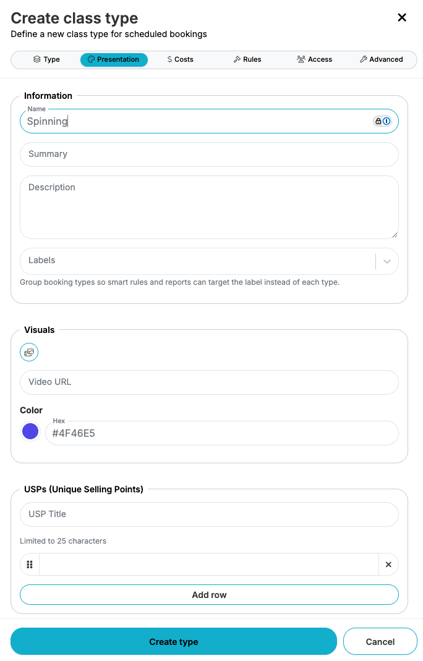
TIP! The image picker opens the Media library. There you can use your own images, images from Wondr or images from Unsplash.
5. Costs
Video 1:50
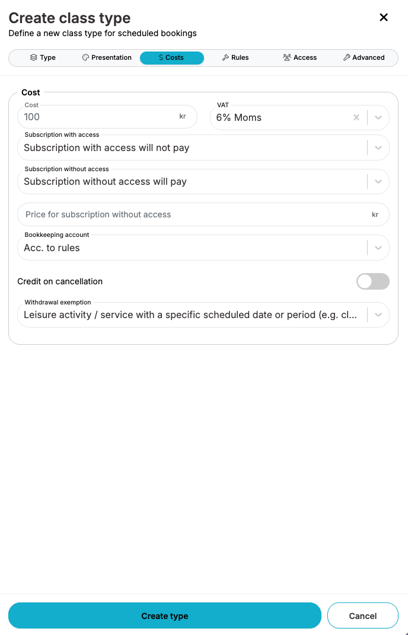
The Costs tab decides what it costs to book this activity.
NOTE: You only need to fill in this tab if the activity should cost something. If there is no cost, members only need an active subscription to book. You choose which subscriptions give access on the Access tab.
CostandVAT: the price and the VAT rate.Subscription with access: choose if members whose subscription gives access will pay or not. If they will pay, you can set a separate price for them.Subscription without access: the same choice for members whose subscription does not give access.Bookkeeping account,Credit on cancellationandWithdrawal exemption: settings for bookkeeping and cancellations.
6. Rules
Video 2:10
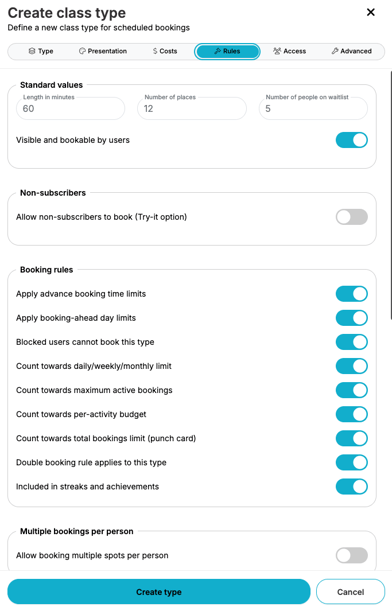
The Rules tab sets the basic values and the booking rules for this activity.
Standard values: how long the activity is (in minutes), how many places there are, and how many people can be on the waitlist.Visible and bookable by users: turn this on so members can see and book the activity.Non-subscribers: let people without a subscription book a first time (the Try-it option).Booking rules: switches that decide which of your general booking rules apply to this type. For example, limits on how far ahead people can book, and if the booking counts towards streaks and achievements.Multiple bookings per personandOverride default settings: let one person book several spots, or use other booking days than your default ones.
7. Access
Video 3:00
The Access tab decides who is allowed to book. Under Booking access, you can choose:
Subscription not needed: anyone can book.- A subscription group, or only specific subscriptions or subscription groups.
Only specific subscription groups + extra subscriptions: a mix of both.
Use Subscription exceptions (deny) to stop certain subscriptions from booking, even if they would otherwise have access.
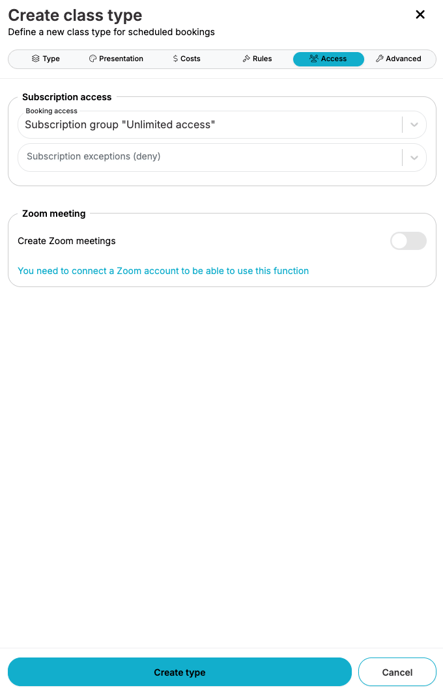
NOTE: The Create Zoom meetings option only works if you have connected a Zoom account.
8. Advanced
Video 4:00
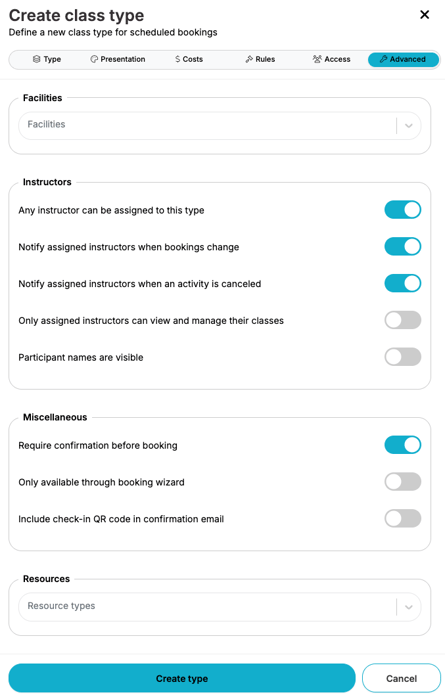
The Advanced tab has extra settings. You can often leave them as they are for your first booking type.
Facilities: which facilities the booking type is used at.Instructors: which instructors can be assigned, and when they get notifications.Miscellaneous: for example,Require confirmation before booking. This is turned on in the video.ResourcesandCalendar sync: connect resource types and add a description for calendar sync.
9. Save your booking type
Video 4:22
Click Create type at the bottom of the window. The message “Booking type saved successfully” shows, and your new booking type is in the list on the Booking types page.
10. Where to get more help
Video 4:30
On helpcenter.wondr.cc, you find Education (like this article), Help articles and News.
You can also open the chat at the bottom right in Wondr and ask the AI assistant.
NOTE: You only see the pages your role has access to. If you can’t find Settings > Booking, ask an administrator at your facility.
Words you will see
Booking type
A description of an activity that members can book, with its price, rules and access.
Class type
A booking type for a class with set times in the schedule.
Floating class type
A booking type with flexible times, for example personal training or massage.
Subscription group
A group of subscriptions. You can give access to the whole group at once.
Waitlist
A queue for people who want to book when all places are taken.
VAT
Value added tax, the tax that is added to the price.
What’s next?
- Create the schedule
The next video in the education series. Use your new booking type in the schedule.
- Create a booking type
A full help article with every setting explained.