
With a time schedule you decide when your Worb-controlled door is locked, unlocked or can be opened via the app. You set regular weekly opening hours, add exceptions for holidays and events, and make sure staff can still open the door outside the schedule.
New to Wondr? Go straight to step 1. The section below is only for existing customers who used the older Time lock function.
Existing customers only: remove the old Time lock first
Skip this section if you are a new customer, or if you have never set up a Time lock.
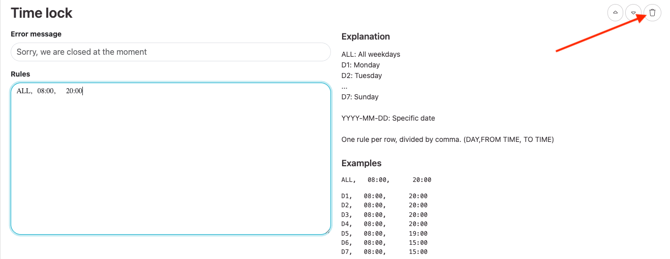
Before time schedules existed, opening hours could be set with a function called Time lock inside the open-door button. If your open-door button still has a Time lock, you must remove it before you create a time schedule. Otherwise the old and the new opening hours will clash.
Not sure if you have one? Follow steps 1–3 below. If there is no Time lock section in the button, you don't need to do anything.
- Go to Settings > Smart rules.
- Click the pencil next to your open-door button.
- Scroll down and look for a section called Time lock.
- If it is there, click the bin in the top right corner of the Time lock section.
- Scroll down to the bottom of the page and click Update.
Do this for every open-door button that has a Time lock.
1. Create a new schedule
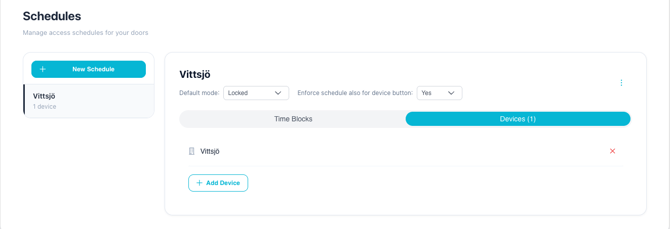
- In Wondr, go to Settings > Permissions > CommonPort > Schedules.
- Click + New Schedule.
- Give the schedule a name (for example the name of your facility).
- Choose a Default mode. It is set to Locked by default, which we recommend.
Existing schedules are listed on the left. Click a schedule to edit it.
2. Understand the basic settings
- Default mode – the mode the door is in during all hours that are not covered by a time slot. With Locked, the door is always locked unless you have scheduled otherwise.
- Enforce schedule also for device button – Keeping this set to Yes, so the door's open buttons follow the schedule.
There are three modes:
- Locked (red) – the door is locked and cannot be opened by members.
- Unlocked (green) – the door is unlocked and anyone can walk in, for example during staffed hours.
- App Unlock (blue) – the door is locked, but members with access can open it via the app.
3. Add your opening hours (time slots)
Under the Time Blocks tab there is one row per weekday (Mon–Sun).
- Click anywhere on the row for the day you want to set up. The row expands and shows + Add time slot.
- Click + Add time slot.
- Choose a Mode (Locked, Unlocked or App Unlock).
- Set Start and End time with the hour and minute dropdowns. If you need a specific minute that is not in the dropdown (for example 22:59), tick Use exact time and type the time as HH:mm.
- Click Save. Each time slot must be saved separately.
- Repeat for the other days. Days cannot be copied, so each weekday needs its own time slots.
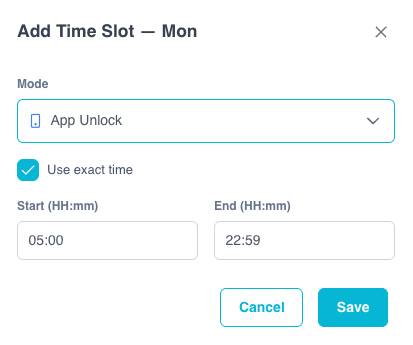
On weekdays you only need to add the hours that should differ from the default mode. Hours without a time slot automatically follow the default mode. For example: with default mode Locked and one slot App Unlock 05:00–22:59, members can open the door via the app between 05:00 and 22:59, and the door is locked the rest of the time.
Important – times must not overlap. Two time slots can never share the same minute. If one slot ends at 12:00, the next one must start at 12:01. Otherwise the slots clash and the schedule will not work.
- Wrong: Unlocked 07:00–12:00 and Locked 12:00–13:00 (12:00 is used twice)
- Right: Unlocked 07:00–12:00 and Locked 12:01–13:00
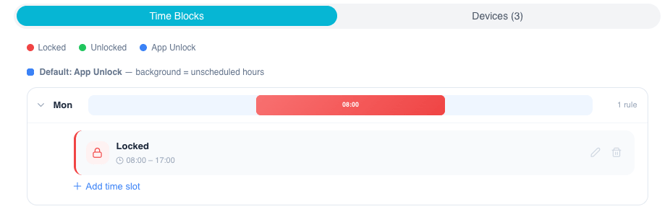
Edit or delete a time slot: click the day to expand it. Click the pencil next to a time slot to edit it, or the bin to delete it.
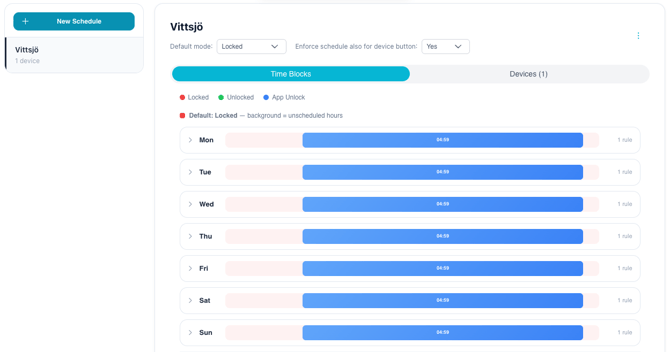
The schedule itself is saved automatically. The coloured bar on each row gives you a quick overview of the day. In the example below the door is in App Unlock mode from 04:59 to 22:59 every day, and locked the rest of the time.
4. Connect the schedule to your door
Click the Devices tab and then + Add Device to choose which door(s) the schedule should apply to. To remove a door from the schedule, click the red × next to it.
5. Add date overrides for holidays and events
Under Date Overrides (further down on the Time Blocks tab) you can set different hours for a specific date. An override replaces the normal weekly schedule for that date only. The day after, the door automatically goes back to the weekly schedule.
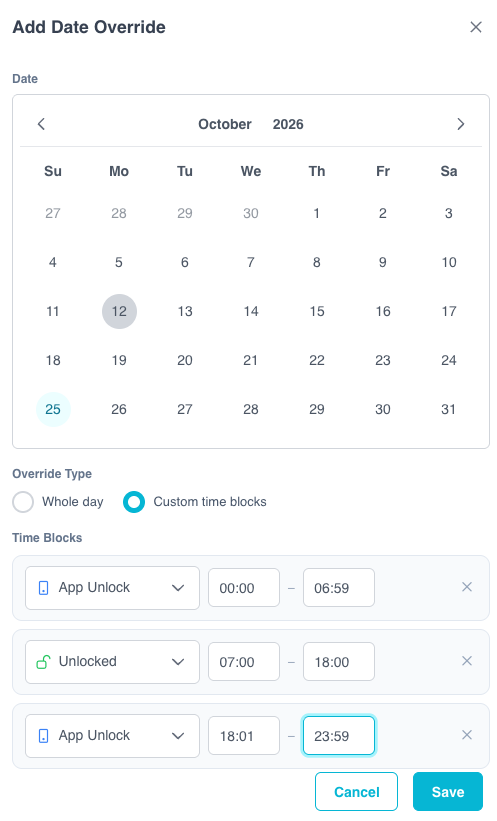
- Click + Add Override.
- Pick the date in the calendar.
- Choose Override Type:
- Whole day – one mode for the entire day, for example Locked on Christmas Day.
- Custom time blocks – different modes during the day.
- For Custom time blocks, set the mode, start time and end time for each block. Remove a block with the ×.
- Click Save.
Important – overrides work differently from weekdays. With Custom time blocks you must cover the whole day, from 00:00 to 23:59. It is not enough to only enter the hours that differ (for example 07:00–18:00). The blocks must not overlap either: let each block start one minute after the previous one ends, for example 18:00 and 18:01.
All overrides are listed under Date Overrides. Click the pencil to edit an override, or the × to remove it.
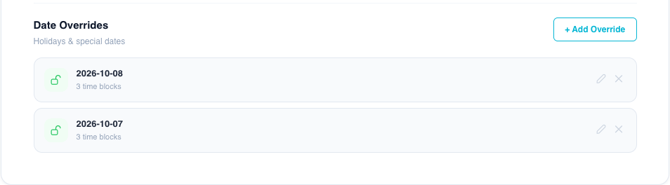
Example: event on 25 October, door unlocked 07:00–18:00
You are hosting an event and want the door fully unlocked between 07:00 and 18:00, while members can still use the app before and after.
- Click + Add Override and pick 25 in the October calendar.
- Choose Custom time blocks.
- Set the blocks so they cover the whole day:
- App Unlock 00:00 – 06:59
- Unlocked 07:00 – 18:00
- App Unlock 18:01 – 23:59
- Click Save.
If the facility should be closed to members outside the event, use Locked instead of App Unlock for the first and last block.
6. Existing customers only: let staff open the door outside the schedule
New customer? Skip this step. Your admin/staff button is already set up to open the door outside the schedule.
If you already used Worb before you added a schedule, you need to update the admin/staff button so staff can still open the door outside the schedule:
- Go to Settings > Smart rules.
- Click the pencil next to the open-door button for admin/staff.
- Scroll down to CommonPort Device Action and change the action to Open 4s (override schedule).
- Click Update. Don't forget this step.
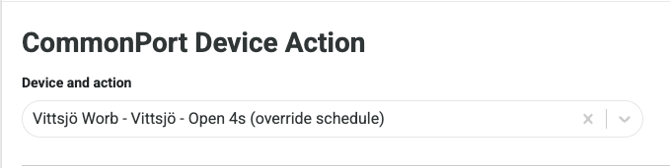
Buttons for members should not use an action marked (override schedule). That way they follow the schedule.
Good to know: Make sure that only the right people (for example staff or admins) have access to buttons that override the schedule.