
Before you start: Do not press the button on the Worb unit, and do not turn its power off and on several times. This can erase all its settings, and the door will stop working until it has been set up again. Think this has already happened? Contact Wondr support.
Good to know
- The Worb unit is a small box that opens the door when you use the Wondr app. It is installed near the door, but the exact place varies. If you cannot find it, ask whoever installed it or contact Wondr support.
- It needs WiFi to work. Most problems happen because it has lost its WiFi or its connection to Wondr.
- In your router and in WiFi lists, the Worb unit shows up with a name that starts with "Shelly". That is the name of the hardware inside.
- In Wondr, you find it under Settings → Permissions → CommonPort → Devices.
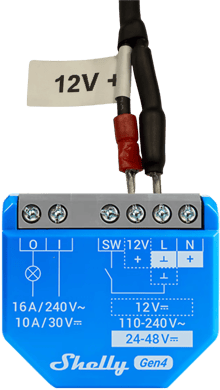
This is what the Worb unit looks like:
What you might need
- A phone or computer with WiFi.
- A login to Wondr with access to Settings → Permissions.
- Your WiFi name and password.
- Access to the place where the Worb unit is installed (for steps 4–5).
- The Worb unit’s password (for steps 4–5). For security reasons we do not publish it. Contact Wondr support and we will help you.
Step 1 – Listen for a click
Open the door with the Wondr app and listen to the Worb unit. Listen carefully: the click is quite quiet and easy to miss in a noisy place.
| You hear a click | Worb is working. The problem is the door lock or the wiring. Contact an electrician. |
| No click | The problem is probably the WiFi. Go to step 2. |
Step 2 – Quick checks
Go through this list:
- Is the internet working? Check that other phones or computers on the same WiFi can go online.
- Does the Worb unit have power? Its light should blink red. Has there been a power cut or electrical work near the door? If the light is off, the unit probably has no power. Contact an electrician.
- Have you changed anything in the network? For example a new router, a new WiFi name or password, or a new internet provider. The Worb unit will not find the new network by itself. Go to step 4.
- Restart your router. Wait a few minutes and try the door again. If someone else manages your network, for example your landlord or IT provider, ask them to restart it.
- Does it only affect some users, or only at certain times? Then it is probably a setting in Wondr. Contact Wondr support.
Step 3 – Check the connection in Wondr
- In Wondr, go to Settings → Permissions → CommonPort → Devices.
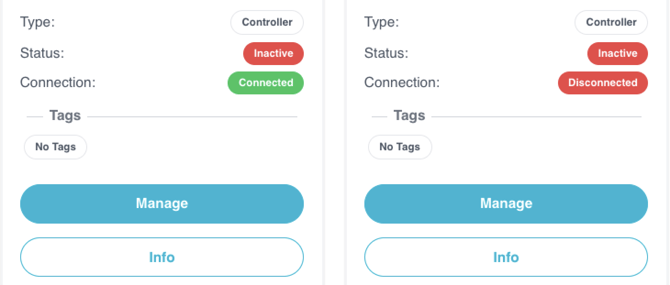
- Check if the Worb unit is connected. In the picture below, the unit on the left is connected and the one on the right is disconnected. Look at Connection, not Status.
| Connected | Check the WiFi signal (see below). |
| Disconnected | Go to step 4. |
Check the WiFi signal
Click Info and look at Signal Strength. The closer the number is to 0, the better.
| Signal Strength | Quality |
|---|---|
| −30 to −50 dBm | 🟢 Excellent |
| −50 to −67 dBm | 🟢 Good |
| −67 to −75 dBm | 🟡 OK |
| −75 to −80 dBm | 🔴 Poor – often unstable |
| −80 dBm or lower | 🔴 Very poor – often drops out |
Weak signal? Move the router closer to the Worb unit, or remove things in between (metal cabinets and concrete walls block WiFi). If that does not help, add a WiFi repeater.
Step 4 – Connect the Worb unit to your WiFi again
A. Connect to the Worb unit
- Stand close to the Worb unit.
- On your phone or computer, open the WiFi settings.
- Connect to the Worb unit's own WiFi network. Its name starts with Shelly, for example ShellyPlus1-XXXXXXXXXXXX. You also need the Worb unit's password. Contact Wondr support to get it.
- Open a browser and go to http://192.168.33.1
Tip: This network has no internet, so your phone may jump back to your normal WiFi. If it asks, choose to stay connected. You can also turn off mobile data while you work.
B. Enter your WiFi details
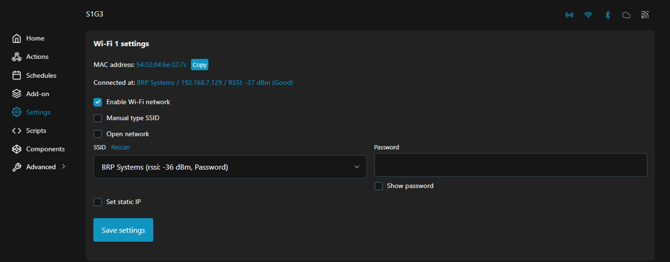
- Go to Settings → Wi-Fi.
- Make sure the WiFi network is enabled.
- Choose your WiFi under SSID and enter your WiFi password.
- Click Save and restart the Worb unit. To restart, use the Reboot button in the Worb unit's settings. Do not turn the power off.
Your WiFi must:
- Use 2.4 GHz. The Worb unit cannot use a 5 GHz-only network.
- Have no login page. Guest networks where you log in through a web page will not work.
- Have a good signal by the door (see the table in step 3).
C. Check that it worked
Wait one minute. Then check the status in Wondr again (Settings → Permissions → CommonPort → Devices).
- Connected? Try the door. You are done!
- Still disconnected? Go to step 5.
Step 5 – Check the connection to Wondr
This setting links the Worb unit to Wondr. It is erased if the Worb unit has been reset. This step is a bit more technical. If you feel unsure, contact Wondr support and we will help you.
- Connect to the Worb unit as in step 4A.
- Go to Settings → Outbound WebSocket.
- Make sure Outbound WebSocket is enabled.
- Set Connection type to Default TLS.
- Set WebSocket URL to exactly this:
wss://common-port.brpsystems.net/shelly - Click Save and restart the Worb unit with the Reboot button, as in step 4B.
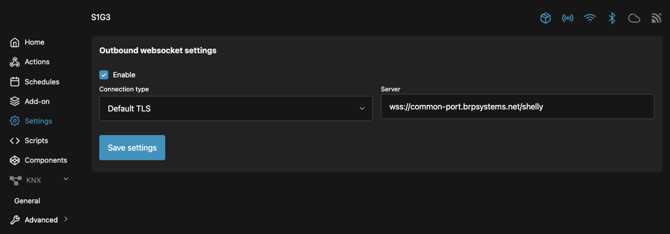
Important: There must be no slash (/) at the end of the URL, otherwise it will not work. Do not change any other settings, and do not remove the password.
Step 6 – Still not working? Contact us
The Worb unit may be broken and need to be replaced. Contact Wondr support at support@wondr.cc or +46 10 20 656 50.
We can help you faster if you tell us:
- The name of the facility and which door it is.
- When the problem started, and if it happens all the time or only sometimes.
- If it affects all users or only some.
- Anything that changed recently (router, WiFi, power cut, electrical work).
- Which steps in this guide you have already tried.
Changing router or WiFi soon?
Update the Worb unit first, while it is still online. Otherwise it loses its connection and the door stops working.
- Find the Worb unit's IP address in your router's list of connected devices. The name usually starts with "shelly". You can also ask Wondr support.
- On a phone or computer on the same WiFi, type the IP address in the browser (for example http://192.168.1.50). Log in with the password from Wondr support.
- Go to Settings → Wi-Fi and enter the new WiFi name and password.
Tip: If there is a field for a second network (Wi-Fi 2), add the new network there. The Worb unit will switch by itself when the old one disappears. - Click Save.
- Now change your router or network.
- Test the door.
Already changed the network and the door stopped working? Follow step 4.
The door works, but at the wrong times?
If the door opens but does not follow your opening hours set in Wondr, the time zone in the Worb unit may be wrong. This is rare, but easy to fix.
- Connect to the Worb unit as in step 4A.
- Go to Settings → Timezone.
- Choose the correct time zone, for example Europe/Stockholm.
- Click Save.
If the times are still wrong, dubblecheck the schedule in Wondr.