
Intro
I den här artikeln beskriver vi steg för steg hur du skapar en smart regel som skickar ett automatiskt e-postmeddelande till en kund vars betalkort har löpt ut.
Gör så här
-
Gå till
Inställningar > Smarta regler. -
Tryck på plusikonen i det övre högra hörnet för att lägga till en ny smart regel.
-
Välj utlösare: Det första steget är att välja vilken typ av händelse i systemet som ska utlösa regeln. Välj
Alla användare, en gång per dag".
Nu är det dags att ställa in den smarta regeln.
-
Börja med att fylla i
Namn, i det här exemplet har regeln fått namnet "Betalkort som löper ut". Under raden finns en kryssruta för att aktivera regeln, markera den så träder regeln i kraft när den sparas. -
Under filtrering, tryck först på knappen "
Lägg till jämförelse". -
I den första rullistan, välj: "
Användare - Har aktivt medlemskap". -
I den andra rullistan, välj
Ja".
(I den översta rullistan där du väljer mellan "och" eller "eller", låt "och" vara kvar som det är).
Tryck sedan på knappen "Lägg till jämförelse" igen.
I den första rullistan, välj "Standard betalingsmetode – Betalingsmetode".
I den andra rullistan, välj "=".
I den tredje rullistan, välj "Kortbetalning (din kortbetalningsleverantör)".
Tryck sedan på knappen "Lägg till jämförelse" igen.
I den första rullistan, välj "Standardbetalningsmetod – Löper ut"
I den andra rullistan, välj "Inom dagar bakåt".
I den tredje rullistan, välj "10".
Tryck sedan på knappen "Lägg till jämförelse" igen.
I den första rullistan, välj "Standardbetalningsmetod - Status"
I den andra rullistan, välj "="
I den tredje rullistan, välj "Aktiv"
Det bör nu se ut som på bilden nedan: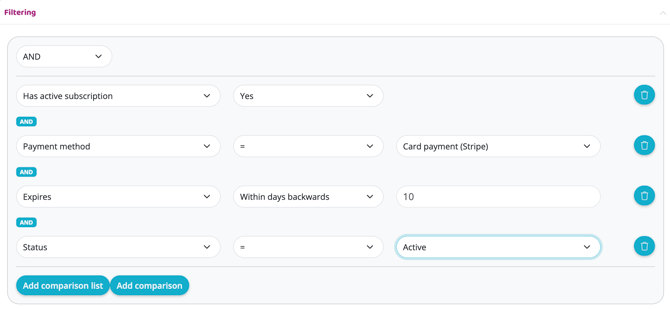
Åtgärd
Lägg till en åtgärd via plustecknet.
Välj E-post. För den här åtgärden finns det några fler alternativ, ställ in enligt nedan:
Från
Din e-postadress.
Till
$(User.email).
Använd layout
Markera INTE denna ruta.
Ämne
Valfritt! Detta blir ämnesraden i e-postmeddelandet (t.ex. "Ditt betalkort har löpt ut!").
Innehåll
Här fyller du i vad du vill ska stå i det e-postmeddelande som går ut till medlemmarna.
Exempel
"Hej $(User.first_name)
Du har ett betalkort tillagt i din profil som är ogiltigt. Vi ber dig därför att gå till din profil så snart som möjligt och lägga till ett giltigt betalkort för att undvika missade betalningar och avbrott i din tjänst. Det är väldigt enkelt och tar inte lång tid, för att underlätta för dig har vi skickat en kort guide som förklarar hur du går tillväga.
Hur gör jag?
Logga in via https://facilityname.wondr.se med dina inloggningsuppgifter
Klicka på ikonen med dina initialer i det högra hörnet och välj alternativet ”Betalningsmetod”
Tryck på den gröna knappen "Lägg till betalningsmetod"
Välj betalningsmetoden kortbetalning, godkänn meddelandet i rutan nedan och tryck på "Slutför"
Fyll i kortuppgifterna för ditt nya giltiga betalkort
Om du vill ha hjälp med detta eller har andra frågor kan du alltid kontakta vår personal, de finns där för att hjälpa dig.
Vänliga hälsningar, XXX"
Ställ sedan in Upprepningar.
Antal dagar tills denna regel kan köras igen: 20.
Ämne: Användare.
Tryck på Skapa.
VIKTIGT! Om du har valt att markera rutan Aktiverad är regeln nu live. Om du har några frågor, vänligen kontakta vår support.
Senast ändrad: 8/7-2025