
Table of contents
- Requirements
- Who uses the tool and when?
- Import
- Data mapping reference
- Export
- History
- Common pitfalls to avoid
Requirements
-
The Migration feature is accessible to Facility admins and Wondr staff.
-
As a Facility admin, you can grant access to other user roles via the Migration admin permission under Role management.
⚠️ CRITICAL WARNING: We strongly recommend not enabling this permission for roles lower than Admin, as this page provides access to highly sensitive customer and financial data.
Who uses the tool and when?
|
Role |
When | Action |
|
Facility admin |
System transition | Uploads export files from the legacy system. |
|
Wondr staff |
Onboarding phase | Retrieves, verifies, and executes the data import. |
|
Admin |
As needed | Exports the customer registry. |
1. Import
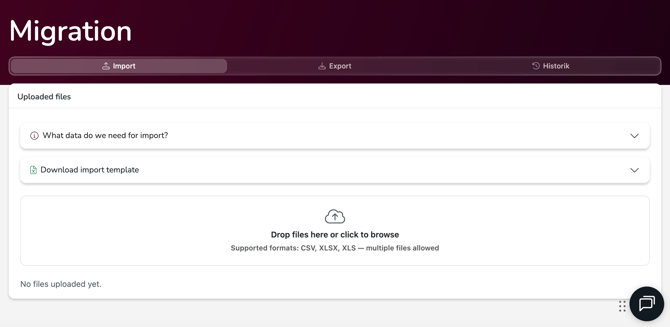
This section is where you upload the data files required to import your customers and subscriptions.
Supported file formats
Files must be formatted as CSV or Excel ( .csv, .xlsx, .xls). Other formats are not accepted by the system.
Uploading Files
- You can drag and drop files directly onto the page, or click to browse files from your computer.
- Multiple files can be uploaded simultaneously.
Tip: You can rename files prior to uploading. Ensure you give files clear, descriptive names to make tracking easier (e.g., customers-2026.csv).
File logs & events
Each uploaded file features an event button showing the number of logged actions. Clicking this button opens a side panel with a detailed log of the file's lifecycle: who uploaded it, who downloaded it, who ran the import, and exactly when it occurred. Actions taken by Wondr staff will also be explicitly shown here.
Required data & templates
The page includes a built-in guide showing exactly which columns are required. You can also download a pre-formatted Excel template directly from the interface to use as a baseline.
Data can be provided either on two separate sheets within a single Excel file or uploaded as two completely separate files.
💡 PRO-TIP: Keep your file list clean and structured. Uploading multiple versions of the same customer registry makes it difficult for Wondr staff to know which file is current. Always delete outdated or replaced files and notify Wondr staff which file is the active one.
Data mapping reference
Customer fields
| Column / Data field | Requirement level | Description |
| ID from legacy system | Mandatory | The unique identifier from your previous system. |
| First name & last name | Mandatory | Must be provided in separate columns. |
| Mobile number or email | Mandatory | Critical for sending system welcome messages. |
| KID / payer number | Mandatory | Required for AvtaleGiro or Autogiro setups. |
| Personal number / birthday | Recommended | Used for identity and age verification. |
| Address, postal code, city | Recommended | Billing and contact address data. |
| Gender | Optional |
Demographic tracking. |
| Registration date | Recommended | Format: YYYY-MM-DD. |
| Card reader / tag number | Recommended | Physical access control token numbers. |
| Payment method | Recommended |
Leave blank, or enter Invoice / Autogiro. |
| Notes | Optional | Will be saved as general notes on the customer profile. |
| Wellness allowance (Friskvårdsbidrag) | Not Supported | Cannot be imported via file; must be added manually post-migration. |
Subscription fields
| Column / data field | Requirement level | Description |
| Customer ID | Mandatory | Must exactly match the ID in the customer list. |
| Subscription name | Mandatory | Must exactly match the product name configured in Wondr (case-sensitive). |
| Paid until | Mandatory | Determines the exact date Wondr will begin billing the customer. |
| Start date | Recommended | The original activation date of the subscription. |
| End date | Recommended | Leave blank for ongoing/recurring subscriptions. |
| Binding period until | Recommended | The commitment lock-in end date. |
| Monthly price | Recommended | Enter 0 for staff or VIP memberships. |
| Freeze from / to | Optional | Periods where billing and booking permissions are paused. |
| Punches remaining | Optional | Used for punch cards/limited-use passes. |
Credit card migration
If your customers pay via saved credit cards, their payment tokens can be securely moved to Wondr so they do not have to re-register their cards. This requires exporting the token/panhash, the card's last 4 digits, and the PSP name from your current provider. Contact your Onboarding associate to initiate this secure transfer process.
2. Export
This section allows you to download your full customer registry as a CSV file—for instance, if you are migrating data out of the system or need an offline backup.
NOTE: Exporting data is completely non-destructive. No customers are deactivated, no subscriptions are cancelled, and nothing changes within Wondr. You are simply retrieving a snapshot of the current data.
Confirmation required before download
Because this file contains highly sensitive personal data and payment configurations, a confirmation dialogue will appear before the download begins. You must review and accept the responsibility warning:
- The download is securely logged with your User name and Timestamp.
- Never distribute this file via email or other unencrypted/unsecured channels.
- Securely delete the file as soon as it is no longer required.
To prevent accidental downloads of sensitive company data, you must intentionally perform two actions: click the main Export button, and then click Confirm in the dialogue box.
Export file structure
Customer & identifier columns
- Facility ID: The unique ID of the facility.
- User ID: The customer's unique ID inside Wondr.
- Location: The specific site location (if the facility utilizes multi-location features).
- User type: Categorized as Person or Company.
- First name / Last name: Separated name fields.
- Personal number / Birthday: Identity identifiers.
- Company name / Organization number: Populated for corporate accounts.
- Gender / Email / Mobile phone: Contact details.
- Street address / Postal code / Postal city: Full address fields.
- Registered: The exact timestamp when the user account was created.
Activity & access columns
- Active subscriptions count: The total number of active memberships.
- Total bookings: Historical booking count. Count this value once per unique user, not per row.
- Access tag number: Assigned physical access card or fob number.
Payment method columns
- Swedbank pay card number / Expire / Token MIT / Token recurring: Gateway tokens for Swedbank Pay.
- Stripe customer / Card number / Expire / Payment method: Gateway tokens for Stripe.
- Worldline card number / Expire / Token: Gateway tokens for Worldline.
- AvtaleGiro KID: KID number for Norwegian direct debit schemes.
- AG mandate reference / Payer number / Account holder / Clearing number / Account number / Registered: Complete Autogiro details for Swedish direct debit schemes.
Subscription columns
- Subscription ID: Unique system identifier for the contract.
- Product / Subscription: Name of the subscription plan.
- Start price: The upfront registration/sign-up fee.
- Month price: The recurring base price.
- Future orice change / Future price date: Pending price updates and scheduled deployment dates.
- Payment date: The day billing occurs.
- Payment timing: Indicates whether billing is advance-paid or rolling.
- Start / End: Contract duration dates (End is blank for ongoing plans).
- Debited until: The paid-to date. This controls the next invoice generation date.
- Binding to: End date of the initial contract commitment period.
- Renew: Indicates if the subscription automatically rolls over.
- Freeze from / Freeze to: Logged suspension windows.
- Punches remaining (current): The live balance of a punch card at this second.
- Future punches remaining: The remaining punch balance after deducting spots reserved for upcoming bookings. This reflects the customer's true usable balance.
- Other payer ID: The User ID of a different customer if they handle the billing for this subscription.
3. History
The History tab provides an immutable audit trail of all migration activities. It logs:
- Which files have been uploaded or downloaded.
- Which data exports have been extracted.
- Exactly who performed each action and when.
Each line entry features an event button that opens a comprehensive drill-down log for that specific file or export task. Any administrative tasks performed by Wondr Staff will be transparently labeled here.
Common pitfalls to avoid
- Mismatched subscription names: This is the most frequent cause of import failures. The subscription product type must be created in Wondr before running the import, and the name in your data file must match it exactly, including exact casing and spaces.
- Incorrect "Paid until" dates: If this date is mapped incorrectly, your customers will be double-billed or billed late. Double-check this field across your entire sheet before running an import.
- Punch cards used mid-migration: If a customer utilizes a punch card session after you extract the data file from your old system but before the import is finalized in Wondr, you must manually adjust their remaining punch balance post-import.
- Wellness allowances (Friskvårdsbidrag): The system cannot parse wellness allowances via CSV/Excel migration files. These must be applied manually to profiles after the core migration is complete.
- File deletion schedule: Files are automatically cleared from the servers after 3 months. Always monitor the scheduled deletion dates shown in your file manager lists.
Last edited: 2026-06-11