
Table of contents
- Introduction
- Summary
- Find the report
- Filter the customer list
- Read the KPI tiles
- Understand the columns
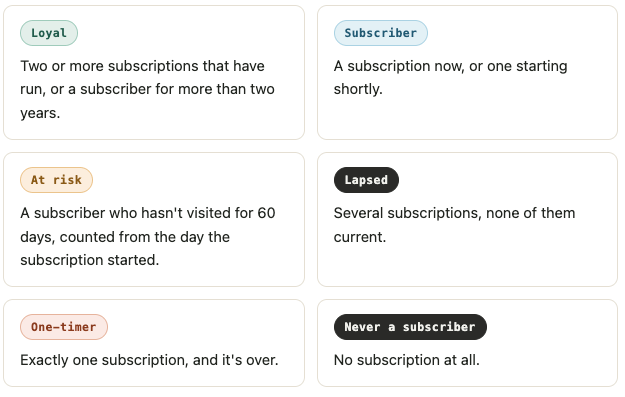
- Read the loyalty segment badges
- Read the subscription status badges
- Sort, export, or email the report
Introduction
Individual customer profiles only tell you about one person at a time. This report gives you the whole picture at once: how loyal your customer base really is, who's about to walk away, and who never came back after their first try, all without opening a single profile.
- 🚩 Catch churn before it happens. The At risk and Ending soon badges flag subscribers who've gone quiet or are about to run out, so you can reach out while there's still time to save them.
- 🏆 Find your most loyal customers. Filter to the Loyal segment to build a thank-you list, plan a loyalty perk, or simply see how many long-term subscribers you actually have.
- 🔁 See where retention breaks down. A high number of One-timers or Lapsed customers points to a gap right after sign-up, something worth fixing before you spend more on acquiring new customers.
- 📊 Get an instant health check. The KPI tiles at the top show total customers, active subscriptions, and average tenure in one glance, no spreadsheet required.
How it works: filter by date, tenure, subscription count, or loyalty segment to narrow the list down to exactly the customers you're after, then sort, export, or email it like any other report.
Summary
- Find the report under
Reports > Users, on the Customer loyalty tab. - Shows one row per customer, not per subscription, so customers who have never subscribed are included too. Removed customers are left out.
- Covers actual subscription history only. It doesn't predict lifetime value or churn with a model, only what has actually happened so far.
- Visit and activity data (used for Last active) looks back 24 months. A customer with no activity in that window is shown as inactive for over 24 months rather than as never active.
- Uses the same standard user filters and columns as the All users report, plus loyalty-specific filters and columns on top.
Find the report
- Go to
Reports > Users > Customer loyalty.
Filter the customer list
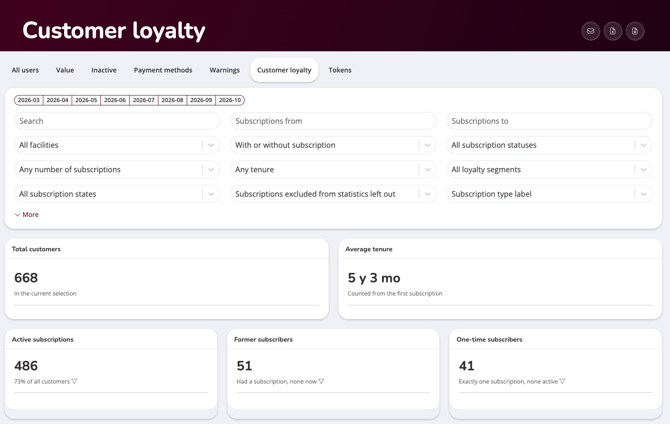
Use the month buttons above the filters to jump to a specific month, or set exact dates yourself.
Search
Find a specific customer by name, email, or phone number.
Subscriptions from / Subscriptions to
Limits the report to subscriptions that started or ended within the period you choose. Leave both blank to include a customer's entire subscription history.
Any tenure
Filter by how long the customer has actually held a running subscription, not how long ago they signed up.
Any number of subscriptions
Filter by how many subscriptions a customer has had in total, active and former combined.
All loyalty segments
Filter to a specific loyalty badge, such as Loyal or At risk. See Read the loyalty segment badges below for what each one means.
With or without subscription
Filter to customers who currently have a subscription, used to have one, or have never subscribed at all.
All subscription statuses
Filter by what's happening next to the customer's subscription, such as Renewing or Ending soon. See Read the subscription status badges below.
All subscription states
Narrows the list to subscriptions in a particular state.
All facilities
Filter to a specific facility.
Subscriptions excluded from statistics left out
Subscriptions flagged to be left out of statistics are excluded by default, the same way your other subscription reports handle them. Switch this if your facility uses that flag for something it still wants to see here.
Subscription type label
Filter to a specific subscription type.
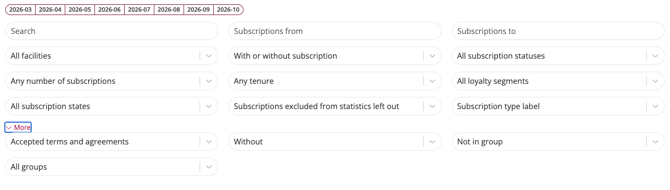
More
Click to reveal the same advanced filters you know from the All users report, including Accepted terms and agreements and group membership.
NOTE: All facilities only appears if your business has more than one facility.
NOTE: With a date set in Subscriptions from / to, every column in the report describes that period rather than the customer's whole history.
Read the KPI tiles
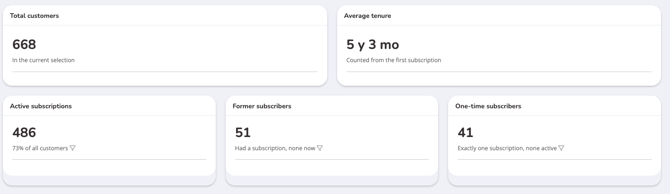
Total customers
Everyone matching your filters, including customers who've never had a subscription.
Average tenure
The average time customers have actually held a running subscription, counted from their first subscription.
Active subscriptions
Customers with a subscription running right now, shown as a count and as a percentage of all customers.
Former subscribers
Customers who had a subscription before, but don't have one now.
One-time subscribers
Customers with exactly one subscription, and it's over.
TIP! Click the number on the Active subscriptions, Former subscribers, or One-time subscribers tile to instantly filter the list to just those customers.
Understand the columns
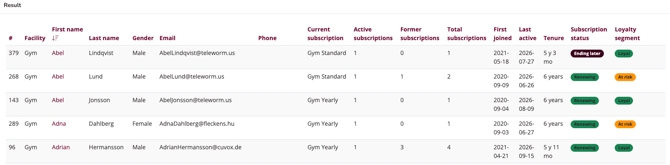
The standard columns (Facility, First name, Last name, Gender, Email, Phone) are the same ones you know from the All users report. On top of those, you get:
| Column | Shows |
| Current subscription | The subscription running right now, if any. |
| Active subscriptions | Count of subscriptions currently running. |
| Former subscriptions | Count of subscriptions that have ended. |
| Total subscriptions | Active and former subscriptions combined. |
| First joined | The start date of the customer's earliest subscription. |
| Last active | The customer's most recent visit, class attended, or form submitted. Not renewals or contract dates. |
| Tenure | Time the customer has actually held a running subscription. Gaps between subscriptions and frozen time aren't counted, and overlapping subscriptions only count once. |
| Subscription status | What happens next to the customer's subscription. See Read the subscription status badges below. |
| Loyalty segment | A badge summarizing what the customer is to you. See Read the loyalty segment badges below. |
TIP! Every column can be sorted, including calculated ones like Total subscriptions and Tenure.
Read the loyalty segment badges
Loyalty segment is what the customer is to you, based on their subscription history and whether they still turn up. It says nothing about what happens to their subscription next, that's the Subscription status column instead.
Read the subscription status badges
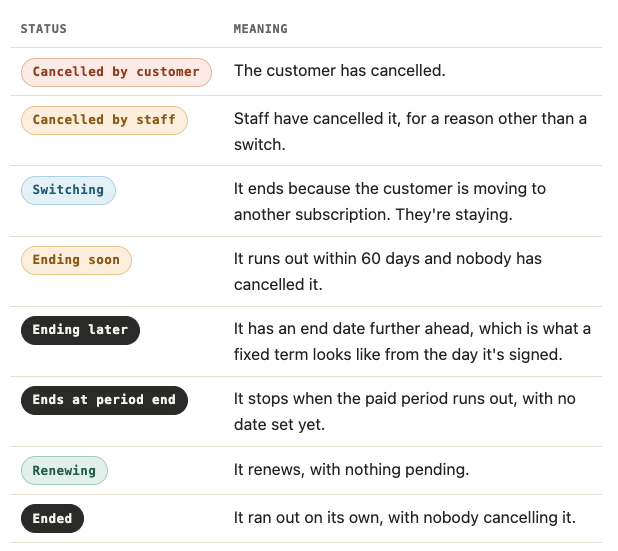
NOTE: An empty Subscription status means the customer has never had a subscription that started.
Sort, export, or email the report
- Click any column header to sort by it, including calculated columns like Total subscriptions and Tenure.
- Use the export icons in the top-right corner of the report to download it as Excel or CSV.
- Use the envelope icon in the top-right corner to send the report by email.
TIP! Sorting, exporting, and emailing work exactly the same way here as in your other reports, so if you already use the All users report, you already know how to use this one.
Last updated: 16/09-2026