
To add an activity, go to Schedule > Weekly Schedule (you can also go to List Schedule to add an activity). If using the list schedule, click the plus sign in the right corner and make the same settings as below, except that the day and time are not preset.
In the weekly schedule, move the mouse pointer to the day and time when the activity is to take place. A line will become visible showing the time. When the day and time are correct, click to bring up the box where the activity is added.
Then you will see the window below – Create activity
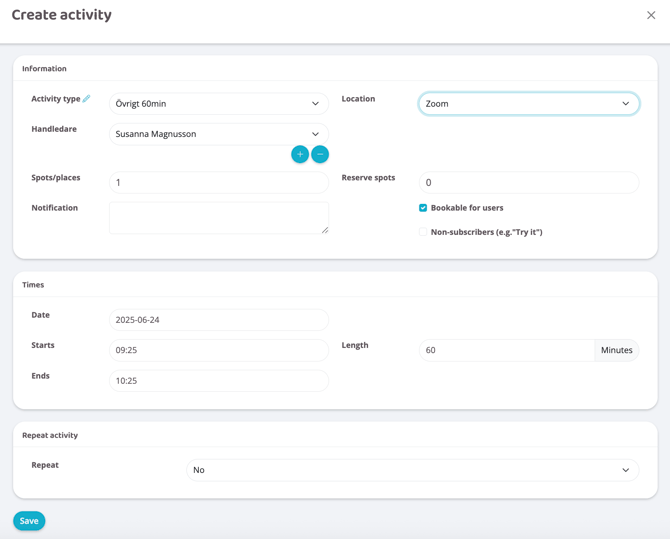
Start with the settings in the Information field
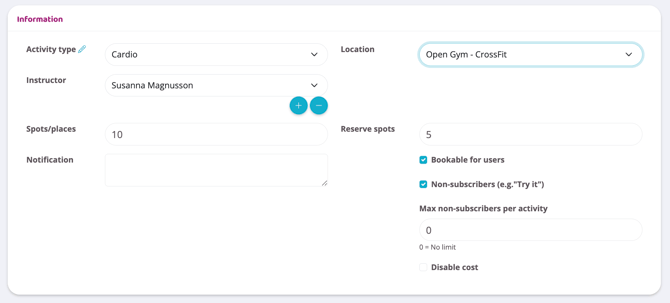
Type
Choose which type of activity to schedule from existing booking types. If you want to create a new one, this needs to be done via the basic settings for it to appear here.
Instructor
Select instructor in the drop-down list. This will list all people who have the role "Staff" on their Wondr profile.
Locations
The number of places will be automatically retrieved as soon as you select a "Type". Wondr then retrieves information from the booking type's basic settings. Entering a different number here will only apply to this activity and will not change the booking type's basic settings.
Notice
Fill in any notes about the activity. Only visible to staff and administrators, not to users/members.
Place
Choose which location/room the activity will take place in.
Reserve seats
The number of reserve places will be automatically retrieved as soon as you select a "Type". Wondr then retrieves information from the booking type's basic settings. Entering a different number here will only apply to this activity and will not change the booking type's basic settings.
Bookable by users
Check the box if the activity should be visible in the schedule and can be booked by customers. If the box is not checked, the activity is only visible to administrators and staff.
Non-subscribers (e.g. try it out)
Check the box if the activity should be bookable by non-members.
Disable cost
If a cost is set in the booking type's default settings, the cost can be disabled here by unchecking the box. Participants will then be able to book this activity at no cost. This box only needs to be reviewed in that scenario. If there is no cost associated with the activity or if there is and it is to be charged, this box should be left as is.
Go to Times
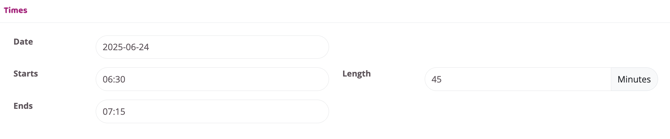
Change the fields above if necessary, otherwise leave the pre-filled values (when you click on the day and time in the schedule, these values will be filled in). The activity length is fetched from the booking type's basic settings.
Go to Repeat Activity
The Repeat drop-down list specifies whether the activity should be repeated. "No" is the default and if left unchecked, the activity will only be created on the selected day and time. If it should be repeated and, for example, at the same time every week, this needs to be changed.

Repeat
Choose the sequence in which the activity should be repeated.
Until
Enter the date until which the activity should be repeated. NOTE! We do not recommend that you schedule more than a year in advance. The schedule runs the risk of becoming sluggish and have slow loading times
Ignore Saturday/Sunday
Check if the activity sequence selected is "Every day" and the activity should not be in the schedule on the weekend.
Then press Save to create the activity in the schedule.